
Overview of How To Connect Ring Doorbell To Echo Show 5
This article explains step-by-step how to connect a Ring Video Doorbell to an Echo Show 5 (and other Alexa devices) via the Alexa app by enabling the Ring skill, linking accounts, discovering devices, and using voice commands to view or answer the door. It details Alexa voice commands for live view, answering, stopping feeds, and playing recorded clips. It also covers basics about Ring operation, battery usage, remote access, and recording behavior.
Quick Solutions to Questions related to Ring Video Doorbell and Echo Show 5:
-
How do I connect my Ring Doorbell to an Echo Show 5?
Open the Alexa app, go to the side menu > Skills & Games, search for Ring, enable the skill, sign in to link accounts, then use Discover to find the Ring device. -
Can I view the Ring camera on Echo Show 5 without answering the door?
Yes; say Alexa, show my front door or Alexa, show the front door camera to view live feed without enabling the microphone. -
How do I answer and speak to a visitor using Echo Show 5?
Say Alexa, answer the front door or Alexa, talk to the front door, or use Alexa, talk to [Ring Doorbell Name] to initiate two-way communication. -
What voice commands stop the live Ring video on Echo Show 5?
Say Alexa, stop; Alexa, hide [Ring Device Name]; or Alexa, hide the front door camera to end the feed. -
Does Ring record continuously or only on motion?
Ring records on motion detection by default; continuous recording requires purchasing a plan for extended recordings.
Here are simple steps to how to connect ring doorbell to echo show 5, in addition to that, this process is same for Echo dot, Amazon fire stick, TC Cube and all other Alexa devices.
Before following the steps of how to connect the ring to echo show, make sure you have installed your ring doorbell, setup ring account, and Alexa App installed to be able to go through this process.
Here Are the Following Steps of How to Connect Ring Video Doorbell to Amazon Echo Show 5
- Open up the Amazon Alexa app on your smartphone.
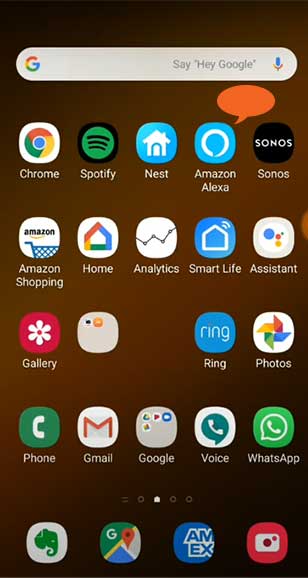
2. On the upper left corner, you will find the menu. Tap on it to open up the side menu.
3. Now, tap on the Skills & Games.

4. On the search bar, type in the ‘Ring‘ keyword to search the Ring Doorbell skill.
The original Ring Doorbell skill should appear on top of the list. If you’re not sure, the logo is in blue color with Ring written on it. Furthermore, the skill falls under the Smart Home category.
5. Tap on it and then select the Enable to use option.

6. You will now be asked to sign in to your Ring Doorbell account.
7. Tap Enable Skill and Link Accounts or Enable Skill if your Ring and Amazon accounts are already linked
8. Once the account is connected, you will see a Discover option which you can use to discover the Ring device.
You should now be able to see the Ring Doorbell on the list. The product will automatically connect. If it does not, make sure the Ring Doorbell is on. You can ask Alexa to find it by saying “Alexa, discover my devices“.
Smart Home: How To Connect eufy To Alexa

9. After Discovering, Go To Camera and Then Front Door to make sure Ring Door bell is working.

10. On Echo Show 5 Just Say Show Me the Front Door To confirm its connected.

Smart Home: Smart Doorbells
Answer the Door on Ring Doorbell on Amazon Echo Show 5?
You can say “Alexa, answer the front door” or “Alexa, talk to the front door“.
These commands will allow you to access the video feed and initiate two-way communication with the visitor.
You can see the video feed on the screen of the Echo Show.
How to Check Live Video Feed without answering the doorbell?
You can do so by using this feature if you don’t want to answer the door but still want to know who’s out there.
You can say “Alexa, show my front door” or “Alexa, show the front door camera“.
Echo will show you the live video feed without enabling the microphone.
You can end the feed by saying “Alexa, stop” or “Alexa, hide the front door camera“.
You can answer the door and communicate with visitors using your Echo or Fire TV device.
To speak to your visitor, you can say:
- Alexa, talk to [Ring Doorbell Name].
- Alexa, answer [Ring Doorbell Name]
View the live video stream from your Ring doorbell or security camera with Alexa commands.
To get a live view from your Ring camera, you can say:
- Alexa, show [Ring Device Name].
- Alexa, show my [Front Door]
To stop the live video feed, you can say:
- Alexa, hide [Ring Device Name].
- Alexa, hide [Front Door].
- Alexa, stop.
- Alexa, go Home.
You can ask Alexa to play the most recently captured motion clip from your Ring camera.
To view and control the recording, you can say:
- Alexa, show me the last activity from [Ring Device Name].
- Alexa, show me the most recent activity from [Front Door].
- Alexa, fast-forward.
- Alexa, fast-forward 10 seconds.
- Alexa, fast-forward 1 minute.
- Alexa, rewind.
- Alexa, rewind 10 seconds.
- Alexa, rewind 1 minute.
- Alexa, pause.
- Alexa, play. (Source ring)
Frequently Asked Questions:
Does Ring work without Alexa?
Yes, you can. But you will not have a feature of Alexa skills commands to be able to operate via from voice.
How does Ring Doorbell work without wiring?
Technically your Ring doorbell works entirely from is an internal rechargeable battery, but the battery itself needs recharging from the main power, bottom line is the ring will work for a period till the battery fully out.
However, a few models of ring doorbells and camera work solely on battery and doest need recharging, except for the replacement of the battery.
How does Ring doorbell work when you are away from home?
The doorbell creates a connection to your Wi-Fi network. That link, among other things, allows it to send video to the Ring app. When the gadget detects motion, it records a video and uploads it to the app. You may use the app and watch all of the videos as long as you have an Internet connection.
If you’re stuck somewhere without Wi-Fi, you may still watch videos you’ve missed in the app’s History area. For your convenience, everything is dated and time-stamped. Additionally, you can observe if the doorbell detected motion or a human.
Do Ring doorbells record all the time?
No, Only record motion detection, however, you can purchase a price plan for every 3 minutes to every hour of recording of images.
About The Author

Hassan Zaka
I am an expert in accounting and possess diverse experience in technical writing. I have written for various industries on topics such as finance, business, and technology. My writing style is clear and simple, and I utilize infographics and diagrams to make my writing more engaging. I can be a valuable asset to any organization in need of technical writing services.
Follow Us:LinkedinTwitter


