
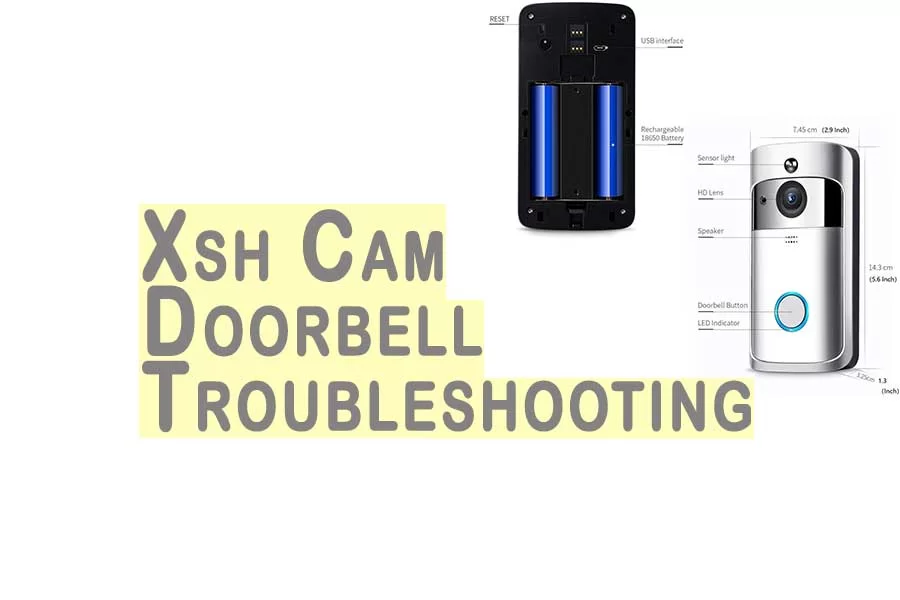
Overview of Xsh Cam Doorbell Troubleshooting – Fixing Common Issues
This article explains initial setup, app usage, firmware, and troubleshooting for the XSH Cam doorbell. It covers pairing steps (use XSH Cam app, 2.4 GHz Wi-Fi, proximity and volume requirements), viewing live feed and settings, alternative apps, firmware notes, common offline and chime problems, PIR and audio issues, resetting the device, battery charging, and fixed 8-second cloud recording limits.
Quick Solutions to Questions related to XSH Cam Doorbell:
-
Can I add the doorbell camera to the app via Wi-Fi?
No, you cannot add the doorbell camera to the app via Wi-Fi; you must use the XSH Cam app and follow the pairing process with a 2.4 GHz network and proximity requirements. -
How do I pair the doorbell with my smart device?
Install XSH Cam, ensure your smart device is on 2.4 GHz Wi-Fi, power the doorbell (or hold reset 5s), keep devices within 30 cm, raise device volume to hear pairing tones, enter Wi-Fi password, select Non-Chinese Mainland, and finish setup. -
Why is the doorbell showing offline and how can I fix it?
Offline can be caused by device internet issues, dropped Wi-Fi, or server updates; fix by checking internet, refreshing the app list, binding camera IP to MAC in router, changing Wi-Fi channel, or using wired Ethernet. -
Why does the chime not sound and how do I resolve it?
Ensure chime receiver batteries and pairing to the doorbell (built-in RF emitter) are correct, verify both run the same frequency (eg 433MHz), and consider moving receiver or using a 433 MHz repeater for range issues. -
Can I extend the 8 second cloud recording time?
No, cloud recordings from the cam doorbell are fixed at 8 seconds and cannot be changed. -
How do I reset the XSH Cam doorbell?
Press and hold the Reset button on the doorbell for 6 seconds to reset the device.
To avoid software issues such as black screen and continuous disconnection, it is crucial to follow the correct process and identify the root cause of the errors.
Are we setting it up the device accordingly? You Can Not Add Doorbell Camera To App Via Wi-Fi.
Initial Device Setup
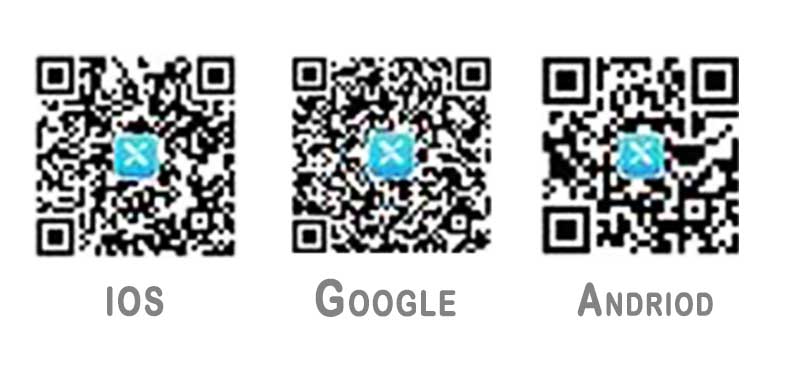
- To pair the doorbell with your smart device you need to install the App. To find the App you can either search for “XSH Cam” Android/IOS in the relevant App store, or scan the following QR codes straight into your smart device:
Before you start, ensure that your smart device has a stable internet connection and is connected to a 2.4 GHz Wi-Fi network. This is important for the proper functioning of motion sensors and camera doorbell.
NOTE: This device won’t work on faster 5.0 GHz networks!
Xsh Cam App
- Launch the XSH Cam App on your smart device and tap the “Add a device” button, followed by “Setup device”.
- Power up the smart doorbell, and you should hear a voice prompt saying the device is ready to pair. If you don’t hear this prompt, press and hold the red reset button on the back of the unit for around 5 seconds to reset the device. Once in pairing mode, the LED indicator on the front of the doorbell will flash blue.
- The App will automatically connect to the same Wi-Fi network as your smart device and fill in the name accordingly. Enter the correct password for your wireless network and press the “Next” button at the bottom of the screen.
- Your smart device will now begin searching for the doorbell. To ensure they connect with each other, make sure they are within a 30 cm distance and that the volume on your smart device is raised to an audible level, so that you can hear the pairing tone (see right).
- Once paired you will hear an audible connected message and see the confirmation screen where you need to enter a name for your device (if necessary) and password (of at least 8 characters). Select Non-Chinese Mainland at the bottom and press the “Finish” button.
- Setup is now complete, and the doorbell will appear as a new device on the top of your device list.
To view a live feed at any time, press the small screen within your device list.
With live feed running, you can access the features and settings of the video doorbell by clicking on the settings button on the bottom right-hand corner. This applies to any doorbell, including the FI doorbell, as long as you have a stable internet connection. This now gives you the option to amend and adjust various settings on the camera doorbell device to suit your environment including; poor light, PIR detection level, and whether you want to record video and images to the internal SD card.
Also, in this section is a QR code that you can share by tapping on the screen with other family and friends who also want to share the doorbell video feed. The QR code can be sent to them through the admin feature, which keeps the video feed secure.
XSH Cam App Alternative
Alternative app for XSH cam to perform and manage all functions of the camera doorbell. Admin can easily tap on the screen to access and control the camera doorbell.
Xsh cam App for iPhone
XSH Cam Firmware Update 2022
After their phone is upgraded, most users are unable to tap on the screen and access their Xsh cam app. This issue can be resolved by contacting the admin or checking the doorbell settings.
- Last update version: 02.01.2020
- Country: All
- Download Size: 134 MB
- Language pack: English, Chinese
- Version: 5.1.11
Smart Home: Nest Doorbell Homekit
Smart Home: Smart Doorbells
Common Reason-1: Wi-Fi Video Doorbell Is Offline, I Could Not Answer Door!
Just like your installed Wi-Fi cameras, the Wi-Fi video doorbell should be online always, therefore you are able to answer the door or watch videos anywhere, anytime. With a simple tap on the screen, you can easily access the cloud storage that keeps all your recorded videos. Offline happens owing to your device (smartphone, tablet) cannot access the Internet or the camera dropped the Wi-Fi connection, sometimes the remote server doesn’t update the camera’s correct network function, so App cannot establish communication. Troubleshooting this problem, here are our advice:
- Check if App or your smartphone can access the Internet or not.
- Pull down the device list on App to refresh the connection.
- Go to your router’s setting, and bind the camera’s IP address with its MAC (physical) address. If you don’t do this, it’s great likely you will encounter an offline error, because the IP cameras released IP address will expire every week if using DHCP (default).
- Go to your router’s Wi-Fi setting, change the “auto” channel to a less congested channel number e.g. 11
- Try to use a wired Ethernet connection instead of Wi-Fi.
Common Reason-2: Chime Doesn’t Sound
Usually, a wireless chime receiver would have a smart Wi-Fi doorbell, which makes the doorbell ring when a guest clicks the call button.Obviously, if your cam doorbell chime doesn’t work, you can tap the screen to search for the batteries within the chime receptor. Remove the batteries from the cam doorbell and tap the screen to verify if the chime is working properly.
If you are using the Xsh smart Wi-Fi video doorbell camera, please remember that before using the Xsh smart Wi-Fi video doorbell camera, you must connect the doorbell camera (built-in RF emitter) with the chime receiver.
The chime receiver is wirelessly attached to the doorbell device, with a distance limit of 75 to 150 feet (45.72 m). For small houses, this selection is acceptable. If you live in a big home, though the wireless coverage is highly likely to not meet the requirement, you can move the receiver by the doorbell, or you can use a wireless signal repeater (not a Wi-Fi repeater, it’s a 433 MHz signal repeater)/extender that can expand the range by 2 to 3 times. Additionally, please verify that both doorbell and chime receiver runs at the same frequency, such as 433MHz. If they run different frequencies, they cannot communicate with each other.
Overview of Xsh Cam Doorbell Troubleshooting
| Smart device won’t connect to the doorbell | Ensure both devices are within 30 cm of each other Ensure you are using a 2.4Ghz network Ensure the volume on your smart device is at an audible level |
| No audio on a smart device | Ensure the volume is turned up Ensure the voice mute button isn’t selected |
| PIR detection is being triggered too often | Ensure the PIR on the doorbell is clean and free of obstructions Adjust the sensitivity of the PIR in the settings mode to suit the environment |
| PIR detection isn’t working | Ensure the PIR on the doorbell is clean and free of obstructions Ensure the PIR settings on your device are set to the correct level |
| My visitor cannot hear me outside, but I can hear them | Ensure you have pressed the 2-way talk button on your smart device |
| The video feed quality is poor or lagging | Ensure the doorbell is located within a reasonable distance to your wireless router |
IF you are still persisting in the issue with Xsh Cam Doorbell, then just reset your doorbell?
Xsh Cam Doorbell Troubleshooting
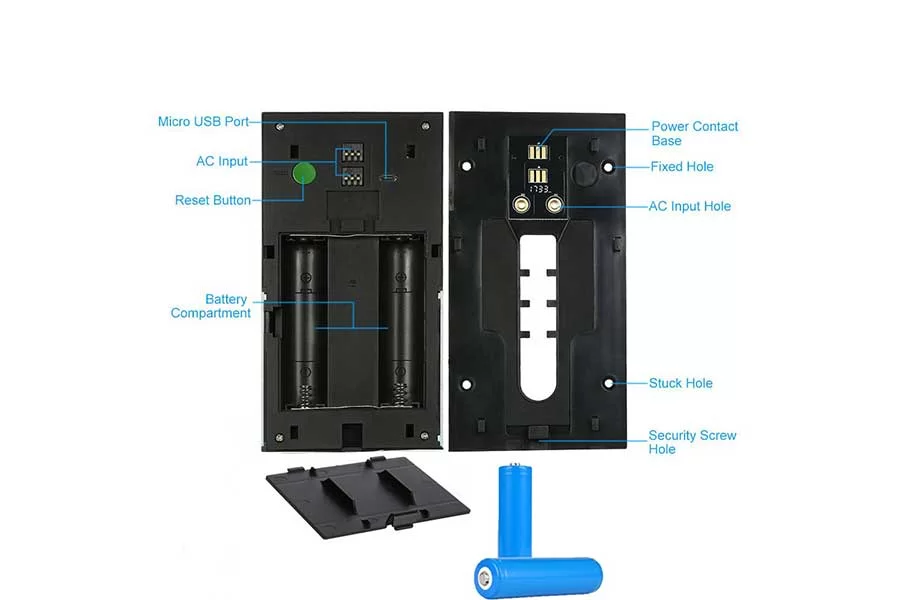
Press and hold the Reset button for 6 seconds.
Price: view availability on Amazon
Frequently Asked Questions:
What is Cruise on Xsh Cam?
Cruising is the automated movement of a camera through pre-programmed patrol lines when no one is in control of it. This way, you won’t miss any traces of clues.
How to recharge the battery?
A micro USB connector and a charging cable are included in the packaging on the back face of the doorbell. Charge the battery directly with a USB cable or with an 18650 battery charger.
Mine will not capture every time someone comes to the door?
Set at Lower dormancy time. There are four options for dormancy time: 15s, 30s, 60s, and Not dormant. It implies that once you close the app, the doorbell will continue to work for 15, 30, or 60 seconds before going into standby mode. If you choose Not dormant, the doorbell will ring constantly, draining the battery quickly.
Why The device does not activate. walk in front of it. Wave a hand nothing happens?
In the settings of the cam doorbell, you can select from three motion detection levels: low, medium, high, and disabled. You have the option of setting the cam doorbell to “High”. If you can’t receive cam doorbell alerts, you may pick from three different push modes: silent, notification, or call-in. Please select the one you require.
Can we extend the 8sec recording to a longer time? Somehow?
For recording videos on the cloud, the cam doorbell videos are 8s and cannot be changed.
About The Author

Hassan Zaka
I am an expert in accounting and possess diverse experience in technical writing. I have written for various industries on topics such as finance, business, and technology. My writing style is clear and simple, and I utilize infographics and diagrams to make my writing more engaging. I can be a valuable asset to any organization in need of technical writing services.
Follow Us:LinkedinTwitter


