Overview of 12 Google Assistant Skills You May Not Be Aware Of
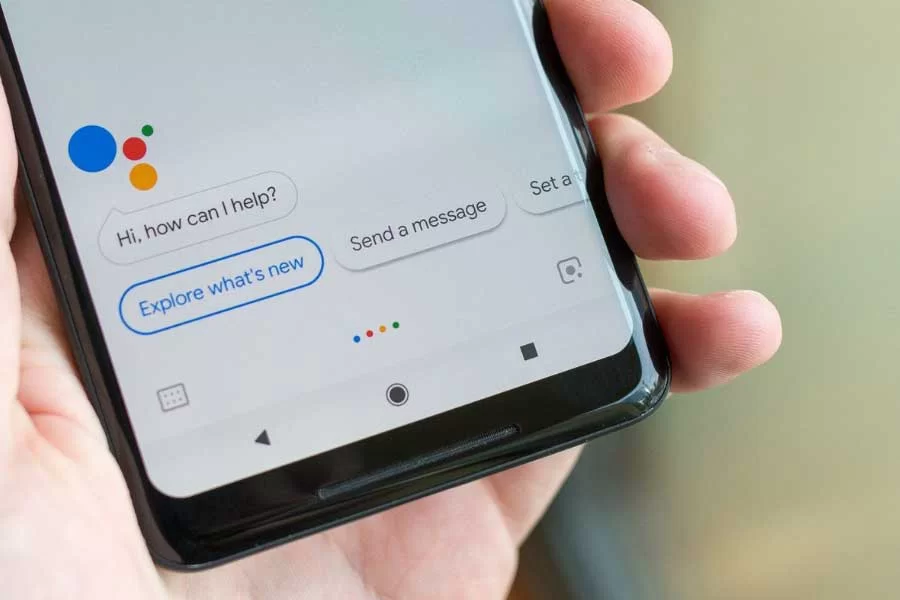
Google Assistant, available since 2016, offers many lesser-known but useful skills beyond setting timers and alarms. These include searching Google Photos by place or landmark, playing shows on Netflix and YouTube, controlling supported apps, timed photo captures, playing podcasts, starting Wear OS workouts, saving and recalling locations of items, broadcasting to Nest devices, playing animal sounds, creating and editing lists, deleting recent voice recordings, and making your Android phone ring via smart speakers.
Quick Solutions to Questions related to Google Assistant Skills:
-
How can I find specific photos in Google Photos using Google Assistant?
With Google Photos open on a Pixel phone, say show me pictures of [place] and refine with the ones at [landmark]. -
Can Google Assistant play shows or videos on my TV?
Yes; say play [title] on Netflix or YouTube to play content on Android TVs, Chromecasts, or Android phones and tablets. -
How do I make Google Assistant remember where I put something?
Tell the Assistant note that [item] is in [location], then ask where are my [item] later to recall it. -
Does Google Assistant let me delete voice recordings by voice?
Yes; use commands like Delete the last thing I said to you or Delete everything I said to you last week. -
What is the best way to find my phone using Google Assistant?
From a Google smart speaker or display signed into the same Google account, say find my phone and the Android phone will ring even if on silent.
You’ve already picked up on a number of the tricks that Google’s voice-activated assistant can do, from setting alerts and clocks to running measurements and searching up words, because it’s been around since 2016.
However due to google continue developing and introducing skills, these 12 goggle assistant skills you may not be aware of.
So Here are the List OF 12 Google Assistant Skills You May Not Be Aware Of
1. Explore The Photos
With Google Photos open on a Pixel phone, you can tell Google Assistant to “show me pictures of…” a place, then follow it up with “the ones at…” and a particular landmark.
Google provides an example of “show me New York photographs” and then “the ones from Central Park,” so you can tailor the commands to your own journeys and image collection.
2. Watch Some TV
On Netflix or YouTube, you can say Google Assistant to play specific videos, series, or forms of content. Simply say “play…”, followed by what you want to watch and the app you want to watch it on.
This works with Android TVs and Chromecasts, as well as on Android phones and tablets.
3. Control Your Apps
Mint, Instagram, Outlook, Discord, and Spotify are only a few of the Android applications that Google Assistant can work with. You can save time on the screen by using commands like “look for candles on Etsy” or “send money in Venmo.” To see all of the available shortcuts depending on the applications you have installed, use the command “display my shortcuts.”
4. Take A Snapshot With A Timer
On Android phones, say “take a photo in five seconds” or “take a selfie in ten seconds,” changing the timer as desired, to ensure you get the perfect shot every time.
5. Play Podcasts
Like every other company out there, Google is keen on podcasts. You can say “play the latest episode from…” followed by the name of the podcast to start listening.
6. Track Your Exercise
Wear OS may not be the most common smartwatch platform on the market, but it does have a close partnership with Google Assistant. You can start tracking your workout without touching your watch by using commands like “track my sprint” and “start a bike ride.”
7. Keep Records Of Where You Put Things.
The long memory of Google Assistant can be a safety nightmare, but it can still help you keep track of where everyone is. Tell the Assistant to “note that my spare keys are in the file cabinet,” and you’ll get the correct response when you ask “where are my spare keys?” later.
You can choose to get the Assistant to remember other bits of information too, such as what your friend’s favorite cake is, or what your locker number is.
8. Broadcast To Multiple Speakers At Once
If you’ve got a bunch of Google Nest speakers and displays around the home, then you can broadcast a message to all of them at once—just say “broadcast” and then your message.
Top Google Assistant Apps List
Smart Home Doorbells Now Have Open Support in Google Assistant
9. Hear Animal Sounds
You might be surprised at how much educational content is packed into Google Assistant for the kids. Try asking, “What does an elephant sound like?” for example, or choose a different animal (the Assistant can carry on picking animals for you if necessary).
10. Make And Edit Lists
Another way to use Google Assistant’s recall abilities is to help it handle the lists. If you have a shopping list, for example, you might say, “Add eggs to my shopping list,” and then ask, “What’s on my shopping list?” to hear all at once.
11. Delete voice recordings
You can delete the voice recordings Google Assistant has logged via your Google account page on the web, but you can also do it through the Assistant itself with commands like, “Delete the last thing I said to you,” or, “Delete everything I said to you last week.”
12. Find Your Phone
This one works with smart speakers and smart displays with Google Assistant on board. Say “find my phone” and your phone will start ringing, even if it’s on silent—as long as it’s an Android phone signed into the same Google account as your speaker or display.
About The Author

Hassan Zaka
I am an expert in accounting and possess diverse experience in technical writing. I have written for various industries on topics such as finance, business, and technology. My writing style is clear and simple, and I utilize infographics and diagrams to make my writing more engaging. I can be a valuable asset to any organization in need of technical writing services.
Follow Us:LinkedinTwitter