Overview of How To Hard Reset on TCL Smart TV Without a Screen: Step-by-Step Guide
This guide explains how to hard reset a TCL Smart TV when the screen is unresponsive or black. It distinguishes between a soft reset, which clears minor glitches without losing data, and a hard reset, which wipes settings to restore factory conditions. The process involves unplugging the TV, holding the power button while replugging it, and using a remote to navigate recovery options like "wipe factory reset" and "reboot now."
Quick Solutions to Questions related to Hard Reset on TCL Smart TV Without a Screen:
-
Can I force a TCL TV to factory reset if the screen is black?
Yes, by unplugging the TV, holding the power button, plugging it back in while still holding, and using the remote to select factory wipe and reboot options. -
What is the difference between a hard reset and a soft reset on a TCL Smart TV?
A soft reset restarts the TV to fix minor glitches without erasing data, whereas a hard reset wipes settings and returns the TV closer to factory state. -
What should I do if the TV does not enter hard reset mode?
Repeat the power sequence carefully by unplugging, holding the power button, replugging while holding, and keeping hold until hard reset mode appears. -
Do I need the remote for a hard reset?
Yes, you must use the remote to scroll through the menu to select wipe factory reset, wipe cache partition, and then choose reboot now. -
Will I lose my settings after a hard reset?
Yes, a hard reset is intended to wipe your settings and data, so you will likely need to set up preferences again after rebooting.
Hard Reset on TCL Smart TV Without a Screen: Step-by-Step Guide

If you need a hard reset on tcl smart tv without a screen , this guide walks through the two reset types and the exact button/power sequence that can help when your TCL TV is unresponsive or stuck, but when i came to TCL Roku TV the reset steps are different.
A reset can fix minor glitches, but a hard reset is the option that returns the TV closer to factory condition. This is especially useful when you cannot reliably access menus due to a blank or black display.
🧠 Soft reset vs hard reset (what each one actually does)
I start by choosing the right level of reset because it changes what gets erased.
- Soft reset: Restarts the TV and can clear minor glitches. It is designed to keep your data and settings.
- Hard reset: Performs a deeper reset that wipes settings and data and returns the TV closer to a factory state.
If you are dealing with persistent errors, repeated freezing, or a situation where the display is not cooperating, a hard reset is typically the better troubleshooting step.
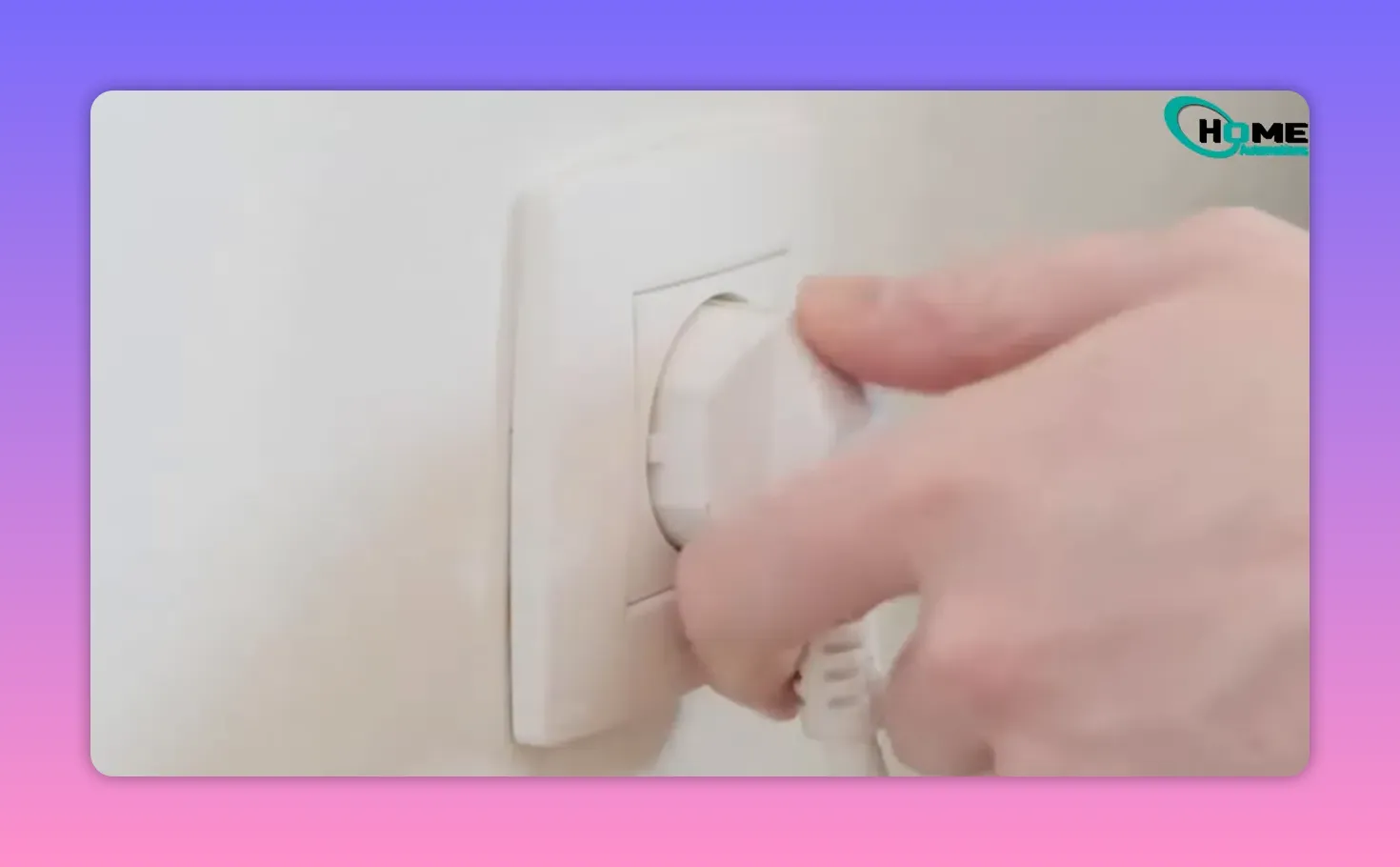
🔌 Step 1: Do a soft reset first (quick fix for minor issues)
A soft reset is the safest first attempt if the TV is still mostly responsive. It can resolve small glitches without wiping your configuration.
- Unplug the TV from the wall outlet.
- Press and hold the power button on the TV for 60 seconds.
- Plug the TV back in.
- Press the power button to turn the TV on.
- Wait a moment for the TV to restart.
If the issue is resolved, you are done. If not, move to the hard reset steps.
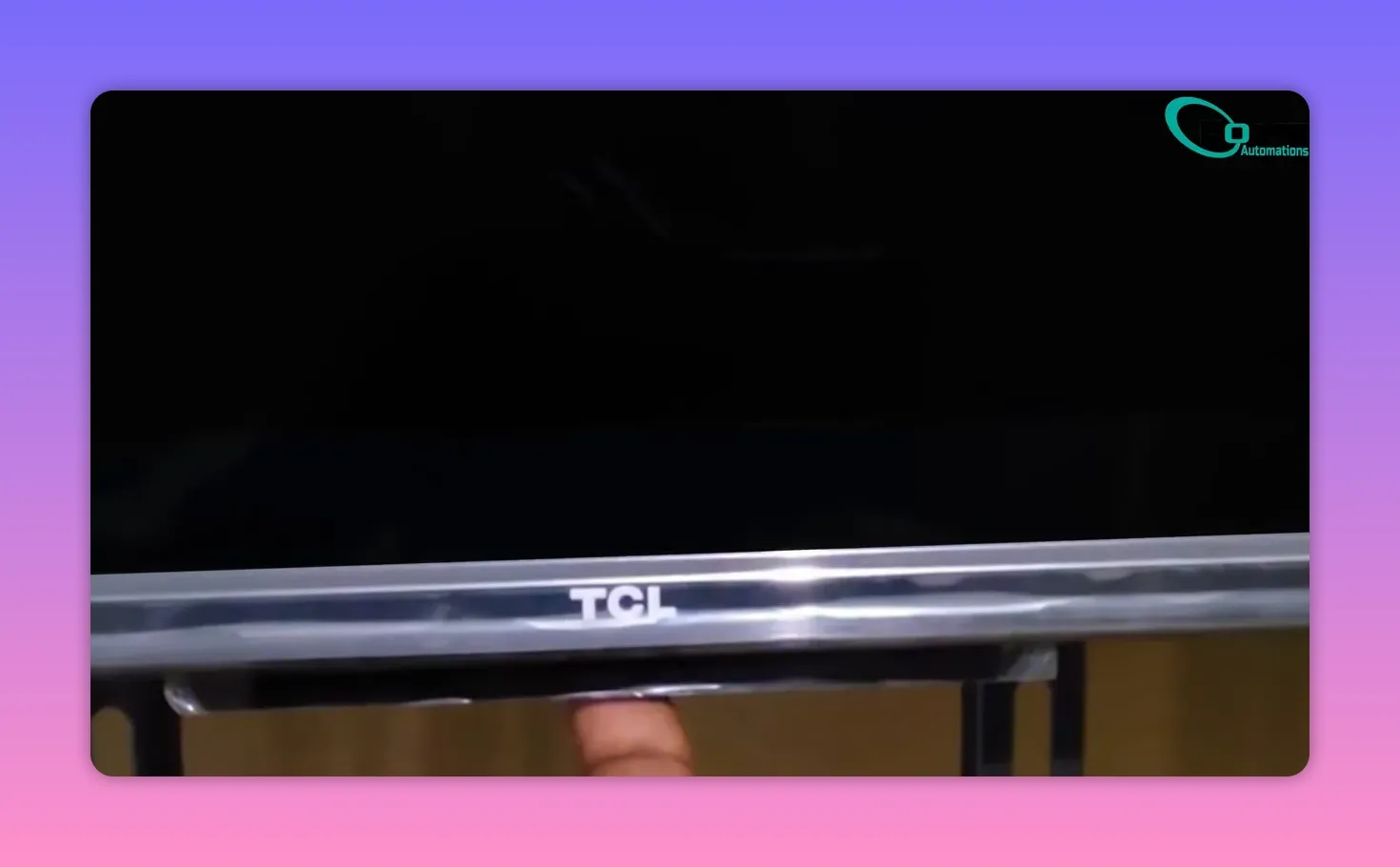
🧾 Step 2: Perform a hard reset on TCL Smart TV without a screen
This sequence is designed for situations where you cannot use the normal on-screen controls. The key is holding the TV power button through the replug so the TV enters the hard reset process.
- Unplug the TV from the wall outlet.
- Press and hold the power button on the TV.
- While holding the power button, plug the power cord back in.
- Keep holding until the TV enters hard reset mode.
- Use the remote to navigate the hard reset options.
🧹 Step 2a: Wipe factory reset
- Scroll to the option labeled wipe factory reset.
- Select yes.
- Wait for the TV to process the reset.
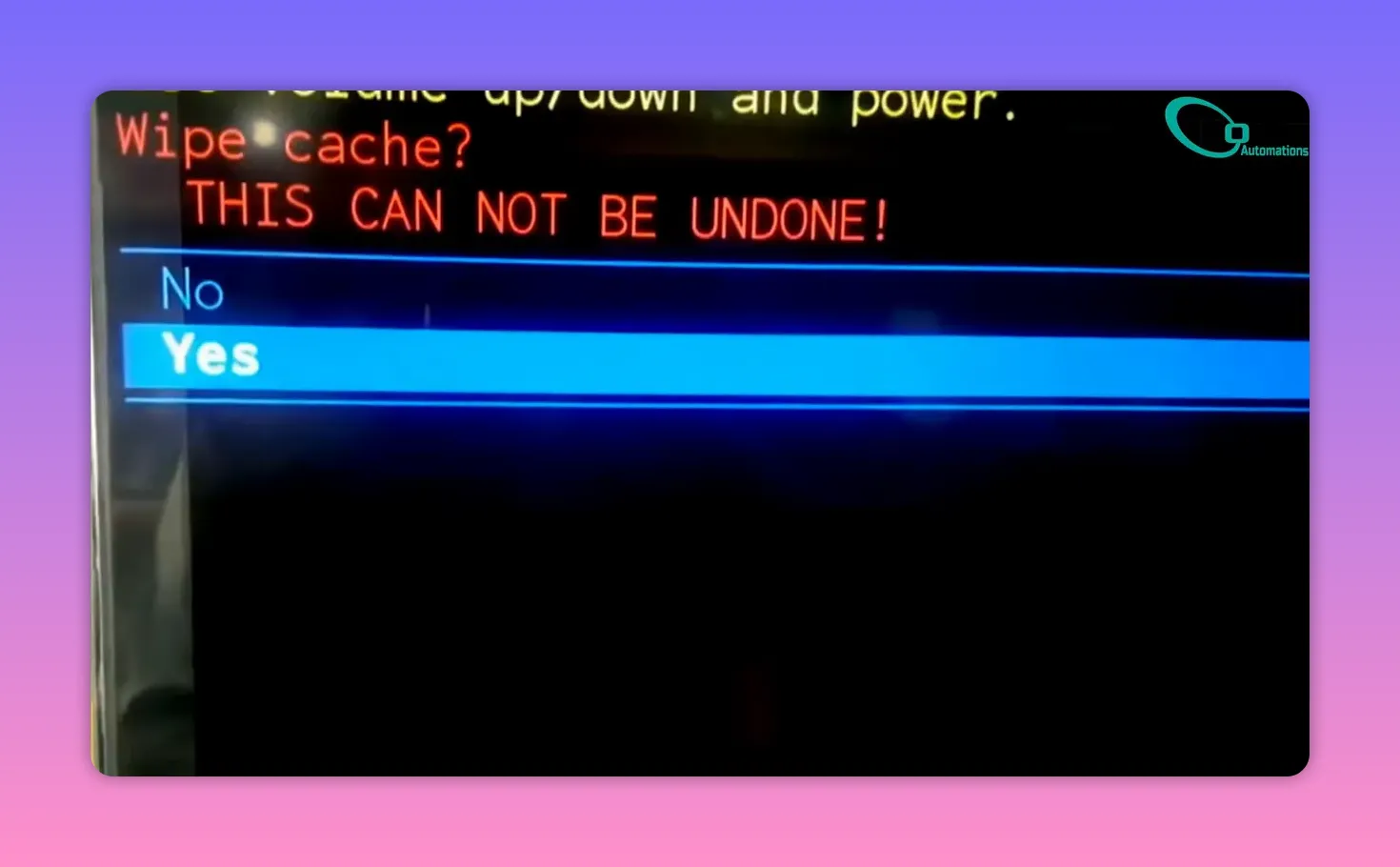
🧼 Step 2b: Wipe cache partition
- Scroll to wipe cache partition.
- Select yes.
- Wait for the TV to process the cache wipe.
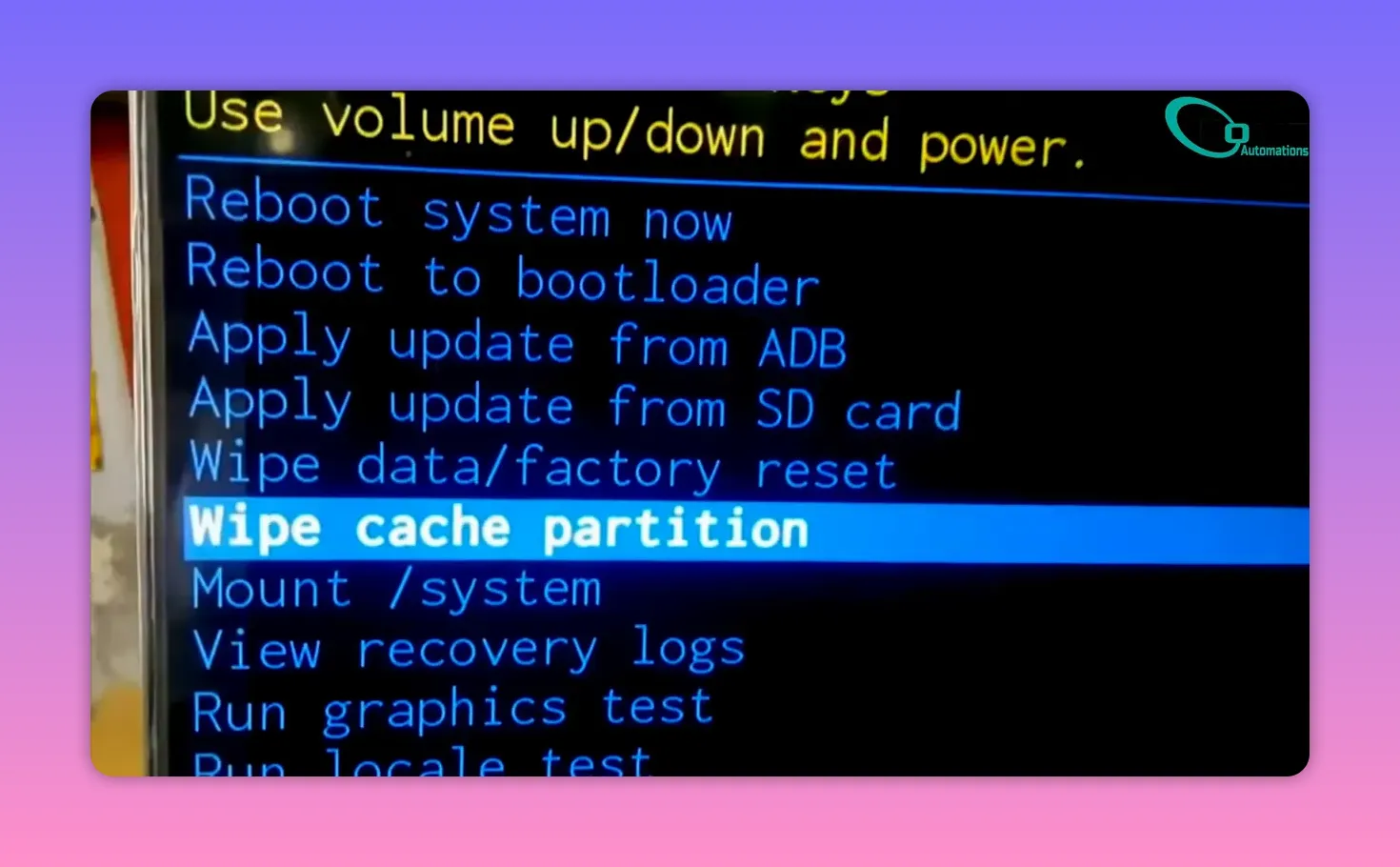
🔄 Step 2c: Reboot now
- Select reboot now.
- Wait for the TV to restart.
After a few moments, the smart TV should power back on. At that point, you can set it up again as needed.
✅ Step 3: Confirm the reset worked (what to check)
Once the TV restarts, I confirm the results by checking for stability and expected boot behavior.
- Does the TV boot reliably? If it repeatedly freezes or fails to start, try the steps again, making sure to fully hold the power button as instructed.
- Do the major problems stop? For example, the original freezing, looping, or persistent errors should no longer occur.
- Are settings cleared? A hard reset is intended to return the TV closer to factory condition, so you may need to reconfigure things later.
⚠️ Common mistakes that prevent a successful hard reset
- Not holding the power button long enough: The hard reset process depends on staying in the correct power state. I always keep holding until the TV enters hard reset mode.
- Letting go too early during replug: The power cord must be plugged back in while still holding the TV power button.
- Stopping after only the factory wipe: The process also includes wiping the cache partition and then rebooting.
- Using a soft reset when a hard reset is needed: If the problem is persistent, a soft reset may not fully address it.
❓ FAQ
Can I force a TCL TV to factory reset if the screen is black?
Yes. I force the hard reset by unplugging the TV, holding the power button, plugging it back in while still holding, and then using the remote to choose the factory wipe, wipe cache partition, and reboot options.
What is the difference between a hard reset and a soft reset on a TCL Smart TV?
A soft reset restarts the TV and can fix minor glitches without erasing your data. A hard reset wipes settings and data and returns the TV closer to factory state.
What if the TV does not enter hard reset mode?
In that case, I repeat the power sequence carefully: unplug, hold the TV power button, replug while holding, and keep holding until hard reset mode appears. Make sure the hold duration is long enough.
Do I need the remote for a hard reset?
For the hard reset options in the reset menu, I use the remote to scroll to wipe factory reset, wipe cache partition, and then select reboot now.
What if the TV does not enter hard reset mode?
You can also refer to official troubleshooting resources from TCL or Roku if the issue persists.
Will I lose my settings?
A hard reset is intended to wipe your settings and data, returning the TV close to factory condition, so you should expect to set it up again after reboot.
📌 Takeaway and next steps
If you need a hard reset on tcl smart tv without a screen , the most reliable approach is: try a soft reset for minor glitches, then use the unplug/hold/replug sequence to enter hard reset mode and complete the wipe factory reset, wipe cache partition, and reboot now steps.
If the issue continues after reboot, repeat the hard reset carefully and ensure the correct button-hold timing. For setup questions after the reset, you will likely need to reconfigure your preferences from scratch.
Related: If your TV is slow or freezing (quick performance troubleshooting)
If your TCL smart TV seems sluggish, lags, buffers, or freezes after a restart, you may need to clear temporary files first and only consider a factory reset as a last resort. For a similar troubleshooting flow (including a cache-clear button sequence and when to use factory reset), see this guide on TV lag fixes.
- Try the lightest fix first (restart/cache clearing)
- Update or reinstall problematic apps
- Use factory reset only if the problem persists
About The Author

Hassan Zaka
I am an expert in accounting and possess diverse experience in technical writing. I have written for various industries on topics such as finance, business, and technology. My writing style is clear and simple, and I utilize infographics and diagrams to make my writing more engaging. I can be a valuable asset to any organization in need of technical writing services.
Follow Us:LinkedinTwitter