Overview of How Do I Perform a Hard Reset on a Samsung TV Without a Screen
This article guides users on performing a hard reset on Samsung TVs with black screens when the display is unresponsive. It details using the physical power button instead of the remote, including unplugging the TV, holding the button for 30 seconds while reconnecting power, and waiting before restarting. The guide also covers troubleshooting steps if the reset fails, such as checking HDMI cables and using a flashlight to detect backlight failure, advising professional repair if hardware issues are suspected.
Quick Solutions to Questions related to Samsung TV Black Screen:
-
Can I do a Hard Reset on a Samsung TV Without a Screen if the display is completely black?
Yes, this method is useful because it uses the physical power button on the TV without needing menu access. -
How long should I hold the power button during the reset?
You must hold the TV's physical power button for 30 seconds before plugging the TV back in. -
Do I use the remote for this reset?
No, you must use the power button located on the TV itself rather than the remote control. -
What if the TV still has no picture after the hard reset?
You should check all cable connections, especially HDMI, and shine a flashlight on the screen to look for faint images. -
What does a faint image on the screen mean?
A dim image visible with a flashlight indicates a possible backlight problem rather than a simple software glitch. -
When should I stop troubleshooting and get repair help?
Professional service is needed if the reset fails, cables are secure, and the screen remains black or shows signs of backlight failure.

If your Samsung TV powers on but shows a black screen, a Hard Reset on a Samsung TV Without a Screen is often the first fix I try. This method is useful when the display is blank and I cannot use on-screen menus. It forces the TV to fully power down and reset its internal system using only the physical power button.
🛠️ What a hard reset does on a Samsung TV
A hard reset cuts power completely and helps clear temporary glitches that can leave the TV stuck on a black screen. I use it when the TV seems unresponsive, the picture is gone, or the set will not recover from a startup problem.
A Hard Reset on a Samsung TV Without a Screen is especially helpful because it does not require menu access. If the display is blank, I can still perform the reset from the TV itself.
- Good for: black screen issues, startup glitches, temporary system lockups
- Does not require: on-screen settings, special tools, technical experience
- May not fix: damaged cables, failed backlights, or hardware faults
🔌 Before I start the reset
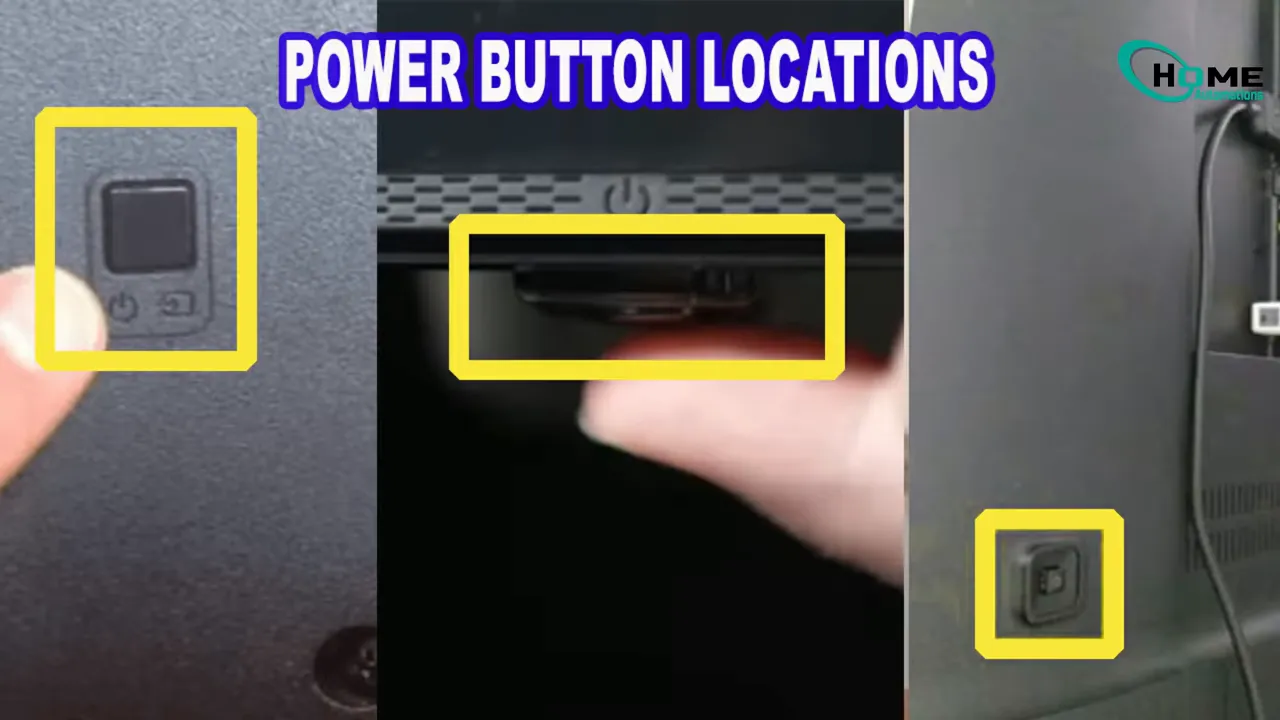
Before trying a Hard Reset on a Samsung TV Without a Screen, I make sure I am using the power button on the TV itself, not the remote. On many Samsung TVs, that button is commonly found on the right side or near the bottom-right edge of the frame.
I also make sure the TV is connected directly to a working power outlet.
📺 How I perform a Hard Reset on a Samsung TV Without a Screen
These are the steps I follow:
- Unplug the TV from the power outlet.
This makes sure the TV is completely powered down. - Find the physical power button on the TV.
Look along the right side or the lower-right area of the frame. - Press and hold the power button for 30 seconds.
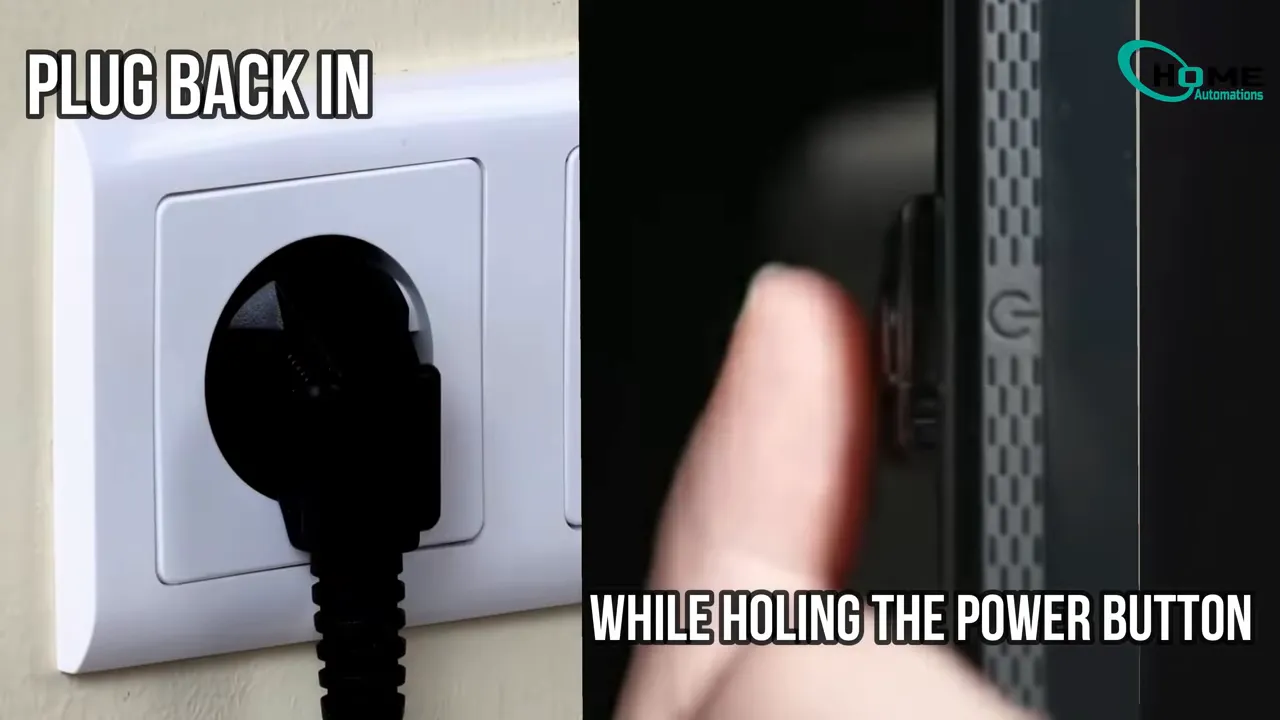
This helps reset the TV’s internal electronics. - While still holding the power button, plug the TV back into the outlet.
This step can feel awkward, so I take my time. - Wait about 30 more seconds.
This gives the TV time to stabilize. - Press the power button once.
If the reset works, the TV may reboot and the power light may change.
This is the core process for a Hard Reset on a Samsung TV Without a Screen. If the problem is only a temporary system issue, the picture may return after the restart.
✅ Signs the reset worked
After I complete the reset, I look for a few basic signs:
- The TV appears to reboot
- The power light changes behavior
- The set responds differently than before
- The picture returns
Even if the screen does not come back immediately, a change in the power indicator can still suggest that the Hard Reset on a Samsung TV Without a Screen was successful.
🔍 If the screen is still black after the reset
If the hard reset does not restore the picture, I move on to a few simple checks.
Check every cable connection
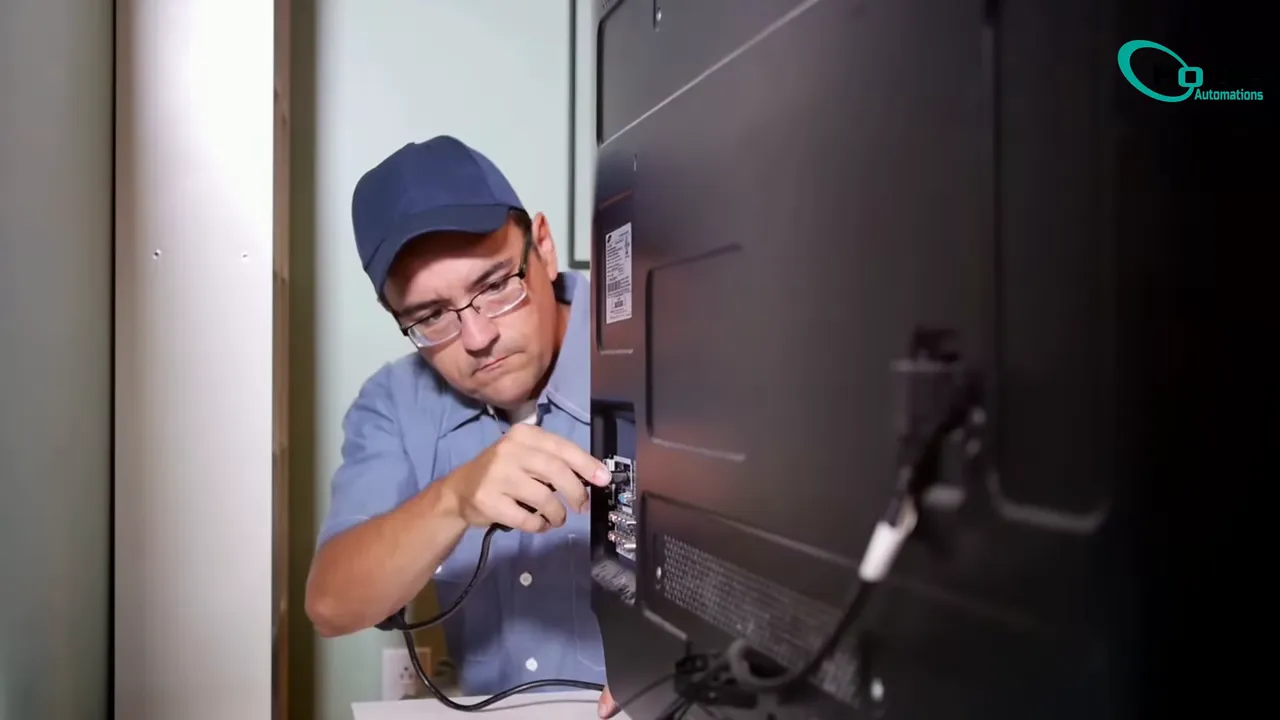
I make sure all cables are firmly connected, especially HDMI cables. A loose or poorly seated connection can sometimes look like a TV failure when the real issue is the input signal.
- Reseat each HDMI cable
- Check the power cable connection
- Make sure nothing is partially unplugged
Use the flashlight test
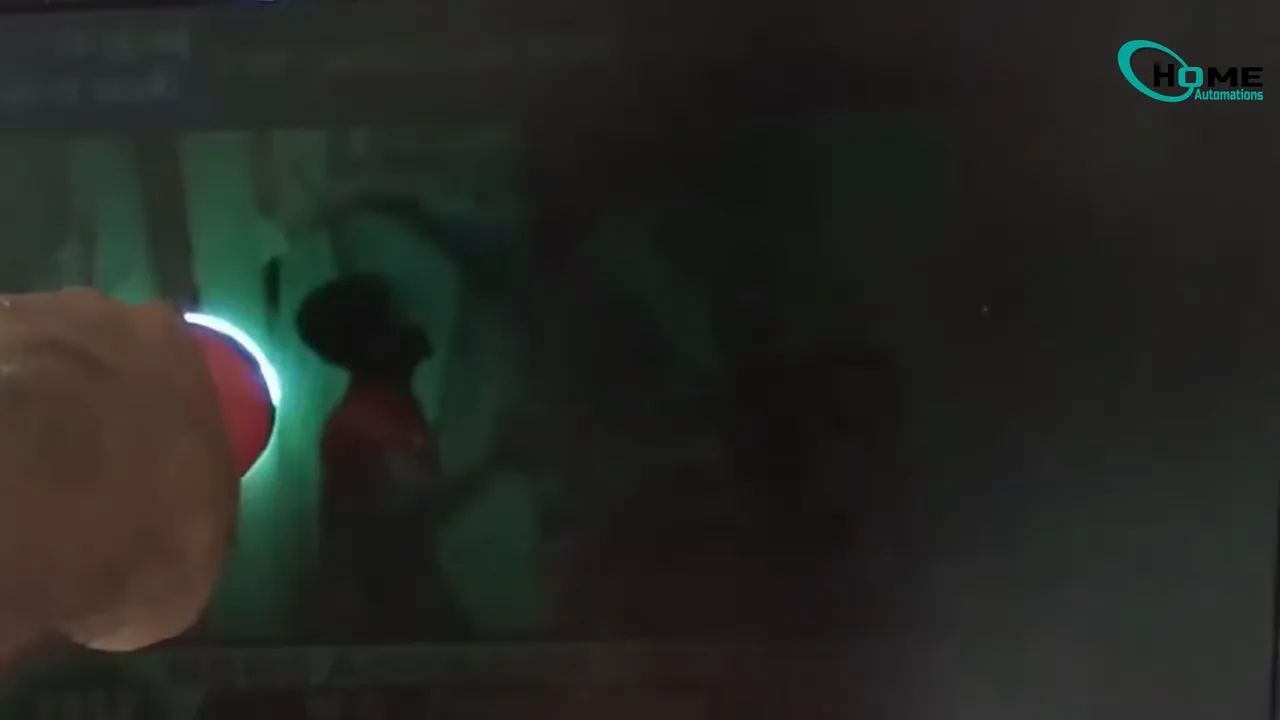
I shine a flashlight at the screen and look closely for faint images. If I can barely see a picture, that points to a possible backlight failure. In that case, a Hard Reset on a Samsung TV Without a Screen is unlikely to solve the problem because the issue may be hardware-related.
⚠️ Common mistakes I avoid
When doing a Hard Reset on a Samsung TV Without a Screen, a few small mistakes can prevent the reset from working:
- Using the remote power button instead of the TV’s physical button
- Not unplugging the TV fully before starting
- Letting go too early instead of holding the power button for the full 30 seconds
- Skipping the extra wait time after plugging the TV back in
- Assuming every black screen issue is software-related when it may be a cable or backlight problem
🧾 Quick checklist for a Samsung TV black screen
If I want a fast troubleshooting flow, I use this checklist:
- Unplug the TV
- Hold the physical power button for 30 seconds
- Plug the TV back in while holding the button
- Wait about 30 seconds
- Press the power button once
- Check for reboot or power light changes
- Reseat HDMI and other connections
- Try the flashlight test for faint images
This is the simplest way I approach a Hard Reset on a Samsung TV Without a Screen before considering outside repair help.
👨🔧 When I consider professional repair
If the TV still has a black screen after the reset and basic connection checks, I treat that as a sign the issue may need professional diagnosis. This is especially true if the flashlight test shows a faint image, since that can indicate a backlight problem.
A Hard Reset on a Samsung TV Without a Screen can solve temporary glitches, but it will not repair failing internal hardware.
❓FAQ
Can I do a Hard Reset on a Samsung TV Without a Screen if the display is completely black?
Yes. That is exactly when this method is useful. I do not need the menu or any on-screen options because the reset uses the physical power button on the TV.
How long should I hold the power button?
I hold the TV’s physical power button for 30 seconds, then keep following the reset sequence carefully.
Do I use the remote for this reset?
No. For a Hard Reset on a Samsung TV Without a Screen, I use the power button on the TV itself.
What if the TV still has no picture after the hard reset?
I check all cable connections, especially HDMI. Then I shine a flashlight on the screen to see whether a faint image is present. If there is, the issue may be a backlight failure.
What does a faint image on the screen mean?
If I can see a dim image with a flashlight, the TV may have a backlight problem rather than a simple software glitch.
When should I stop troubleshooting and get repair help?
If the Hard Reset on a Samsung TV Without a Screen does not work, the cables are secure, and the screen still stays black, professional service may be the next step.
📌 Final takeaway
A Hard Reset on a Samsung TV Without a Screen is one of the easiest first fixes for a Samsung TV black screen. I unplug the TV, hold the physical power button for 30 seconds, reconnect power while holding the button, wait, and then power it on again.
If that does not restore the picture, I check HDMI connections and use a flashlight to look for faint images. Those extra checks help me figure out whether the issue is a simple reset problem or something more likely to need repair.
Related Samsung TV Screen Troubleshooting
If your reset and basic cable checks still don’t resolve the issue, and you notice other display problems (like black lines), you may need to run additional Samsung diagnostics. This troubleshooting article covers causes and step-by-step checks, including how to use a built-in Picture/Video Test to help distinguish hardware vs. software faults: Samsung Smart TV black lines fixing guide.
This article was created from the video How to Perform a Hard Reset on a Samsung TV Without a Screen with the help of AI.
About The Author

Hassan Zaka
I am an expert in accounting and possess diverse experience in technical writing. I have written for various industries on topics such as finance, business, and technology. My writing style is clear and simple, and I utilize infographics and diagrams to make my writing more engaging. I can be a valuable asset to any organization in need of technical writing services.
Follow Us:LinkedinTwitter