Overview of Why Roku TV is So Slow Lagging Or Freezes: Just 3 Real Fixes
Your Roku can slow due to cached files, app data, or software glitches. Try a hidden cache clear (Home x5, Up x1, Rewind x2, Fast Forward x2) monthly or when lagging. Update or reinstall misbehaving apps via the star button to clear their stored data. Use a factory reset (Settings > System > Advanced system settings > Factory reset) only after other fixes fail; this erases apps and settings. If poor performance persists post-reset, the hardware may be failing and replacement is likely the best option.
Quick Solutions to Questions related to Roku Performance Fixes:
-
How do I clear the Roku cache to fix lag?
From the Home screen press Home five times, Up once, Rewind twice, Fast Forward twice to clear temporary files and restart the player. -
Can reinstalling an app fix buffering or freezes?
Yes; press the star button on the highlighted app, choose Remove channel, then reinstall it from the Channel Store to clear the app's stored data. -
Does checking for app updates help performance?
Yes; press the star button on a misbehaving app, check for updates, and install any available updates to fix bugs without losing app data. -
When should I perform a factory reset on my Roku?
Use a factory reset only after cache clearing and app reinstall fail; go to Settings > System > Advanced system settings > Factory reset and follow the prompts. -
Will a factory reset remove my apps and settings?
Yes; a factory reset erases all apps, accounts, and personalized settings and requires setting up the device again. -
How do I know if I need to replace my Roku?
If issues persist after cache clearing, app reinstalls, and a factory reset, the internal hardware may be failing and replacement may be necessary.
Your Roku was fast when you bought it.
Now it freezes, lags, buffers, or takes forever to open apps — usually at the worst possible time.
The good news is you don’t need to buy a new Roku yet. In most cases, slow performance is caused by cached files, glitchy apps, or software hiccups that are easy to fix in minutes.
In the video below, I’ll show you the exact Roku remote sequence and step-by-step fixes that clear lag, stop freezing, and restore smooth performance without deleting your apps or settings.

Key Takeaways
- Try a quick cache clear and restart to fix common slowdowns.
- Reinstall problematic apps to remove their stored data and resolve glitches.
- Use a factory reset only if other fixes fail, then consider replacing the device if issues persist.
Why Roku Gets Slow, Freezes, or Lags Over Time
Spotting Lag, Freezes, and Slow Apps
You might notice your Roku takes longer to load screens, apps, or videos. The remote may stop responding, or the picture may pause while audio keeps playing. Apps can also freeze or close on their own.
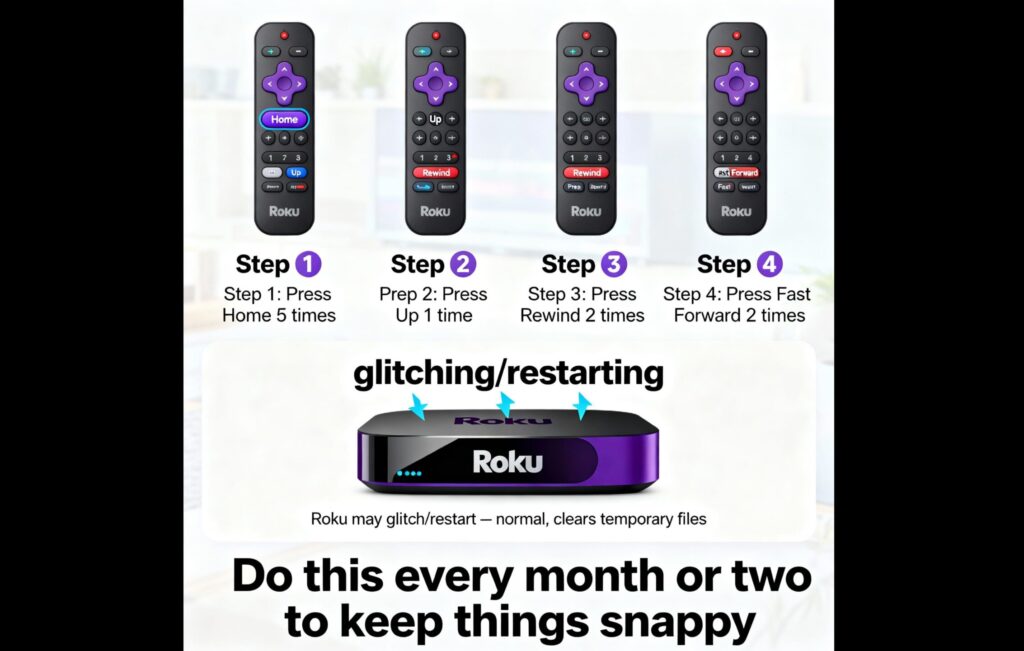
Try a quick cache clear if this happens. On the home screen, press Home five times, Up once, Rewind twice, Fast Forward twice. Your Roku may glitch or restart — that’s normal and just clears temporary files. Do this every month or two to keep things snappy.
Reasons Your Roku Gradually Slows Down
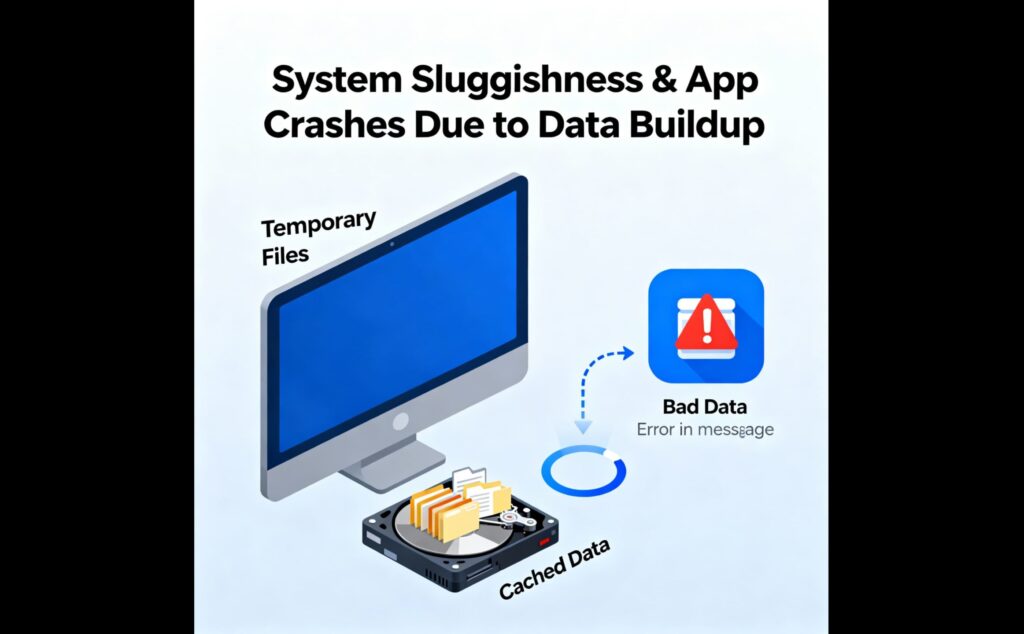
Temporary files and cached data build up over time and make the system sluggish. A single app can also store bad data and cause buffering or crashes for that app only.
If an app misbehaves, press the star button while highlighting it, check for updates, and if needed delete and reinstall the app. Reinstalling removes the app’s stored data and often fixes issues. If problems persist, use a factory reset in Settings > System > Advanced system settings > Factory reset.
This erases everything and returns the device to factory condition. If a factory reset still fails, the device hardware may be failing and replacement might be necessary.
- Quick fixes: cache clear (remote sequence), app reinstall
- Last resort: factory reset (requires re-setup)
- If reset fails: consider replacing the Roku
First Fix:
How to Clear Roku Cache Using the Remote (Hidden Restart Trick)
Quick remote sequence to clear temporary files
Make sure you are on the Roku home screen. Use the remote and press: Home five times, Up once, Rewind twice, Fast Forward twice.
The player will likely freeze or flash while it works. That means it is clearing temporary files and restarting. This does not remove apps or settings.
What happens when the cache clears
The Roku deletes short-term files that slow it down. You may see the screen glitch or the device restart. After it finishes, apps and menus often run smoother. You do not lose installed channels, accounts, or personalized settings.
How often you should run this trick
Try this once every one to two months to keep performance steady. Do it sooner if your Roku becomes slow, freezes, or apps lag. If one app still misbehaves, remove and reinstall that specific channel to reset its data.
Resolving Individual App Problems
Updating a Misbehaving App
Highlight the app that keeps acting up on your Roku. Press the * (star) button on your remote to open the options menu.
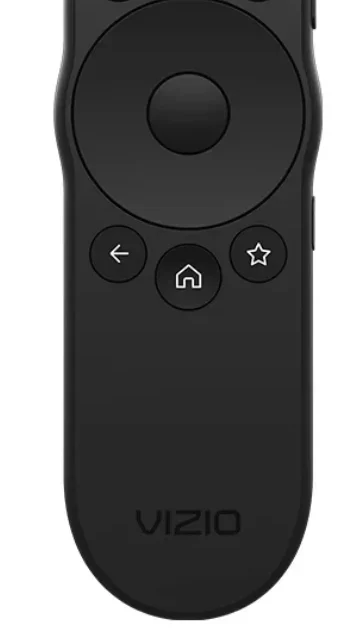
Choose to check for updates and install any available update. This can fix bugs and improve performance without losing your app data.
Second Fix:
Removing and Adding an App Again
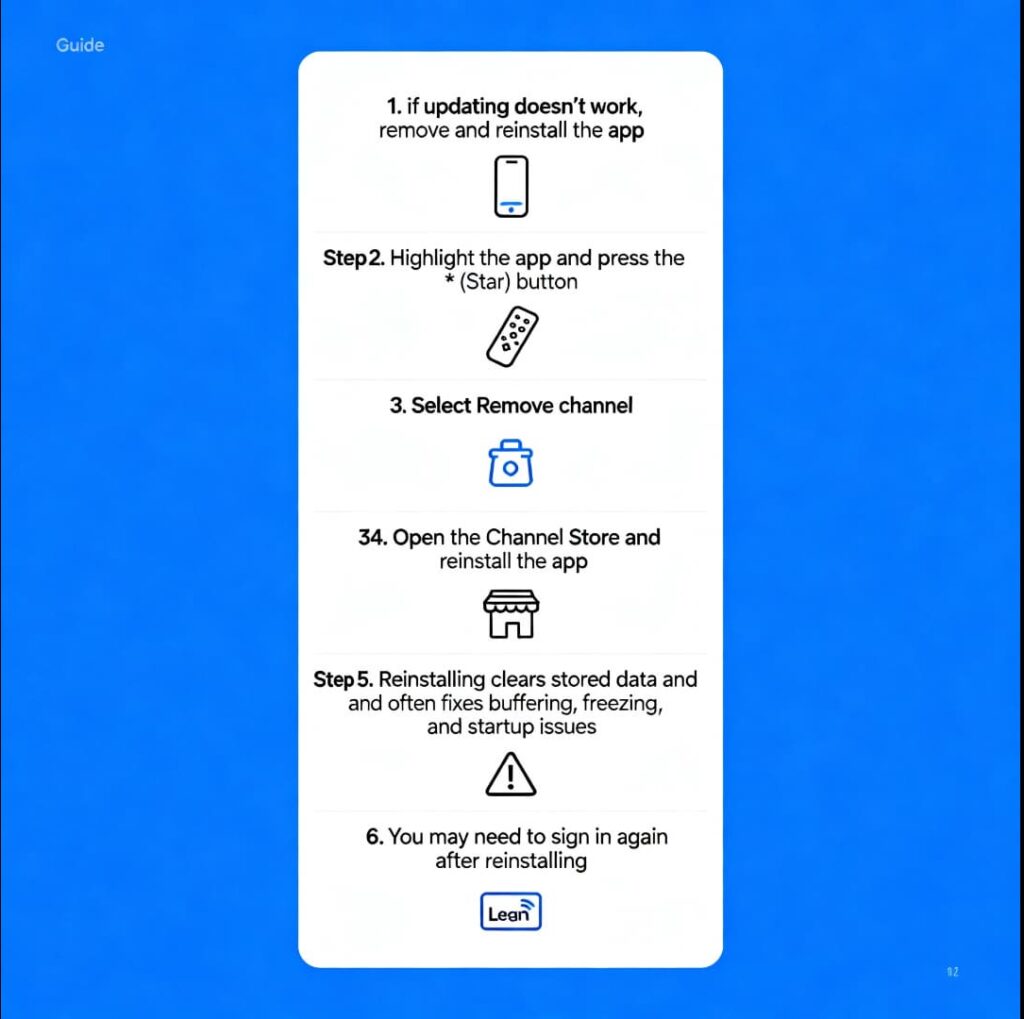
If updating doesn’t fix the issue, remove the app and add it back. Press the * button with the app highlighted and pick Remove channel.
Then open the Channel Store, find the app, and reinstall it. Reinstalling clears the app’s stored data and often stops buffering, freezes, and startup failures. You may need to sign in again after reinstalling.
Third Fix:
Factory Reset Roku: When to Use It and How to Do It Safely
When to pick a full reset
Use a factory reset only after other fixes fail. Try clearing the cache with the remote trick and reinstalling a problem app first. If your device still lags, freezes, or crashes after those steps, a factory reset may be the next option. If a reset doesn’t help, the device hardware might be failing and replacement could be required.
How to do the full reset
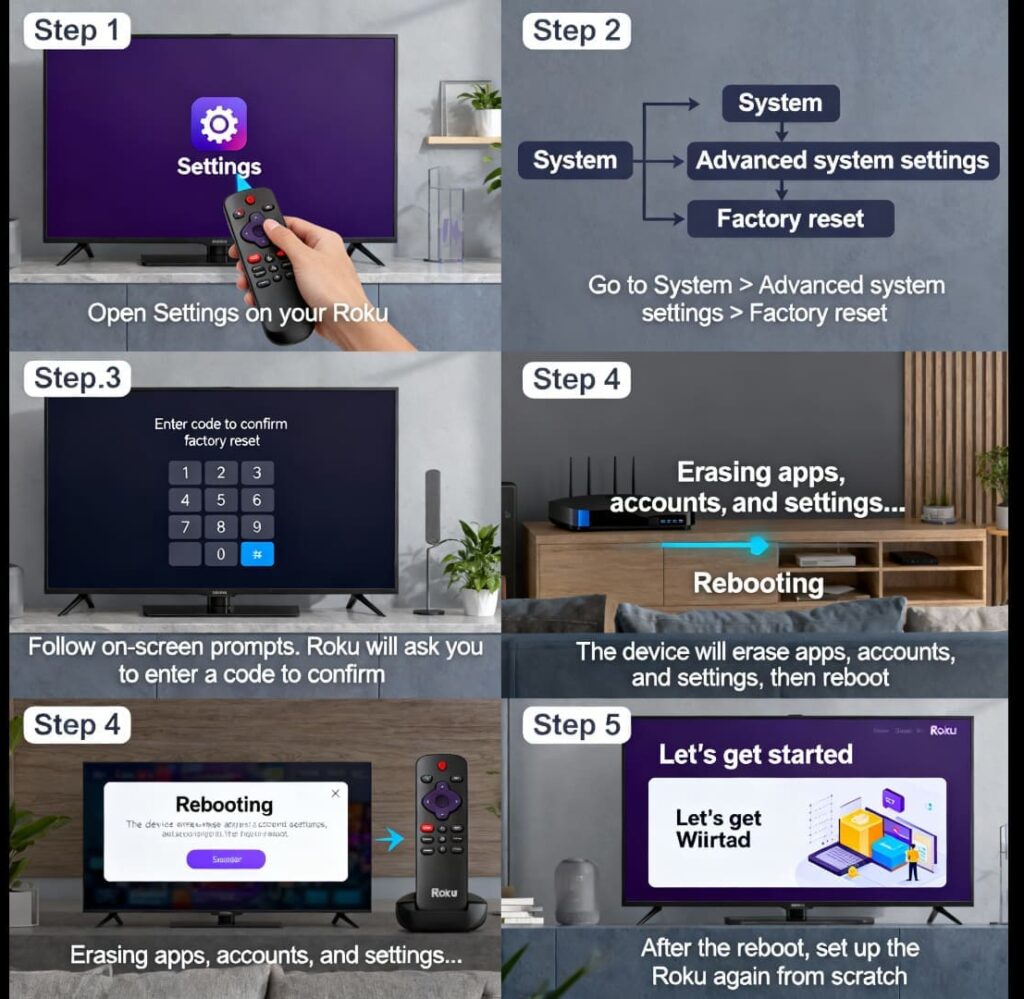
- Open Settings on your Roku.
- Go to System > Advanced system settings > Factory reset.
- Follow the on-screen prompts. Roku will ask you to enter a code to confirm.
- The device will erase apps, accounts, and settings, then reboot.
- After the reboot, set up the Roku again from scratch.
Things to know before you reset
- A factory reset removes all apps, accounts, and personalized settings.
- You will need to sign back into your accounts and reinstall apps.
- Try clearing the cache (home x5, up, rewind x2, fast-forward x2) and reinstalling a single bad app before resetting.
- If problems persist after the reset, consider that the hardware may be failing and replacement might be necessary.
When a Slow Roku Means It’s Time to Replace the Device
Spotting hardware problems and persistent issues
If your Roku keeps freezing, lags a lot, or apps never load, try fixes before buying a new one. Clear the cache with the remote: from the Home screen press Home five times, Up once, Rewind twice, Fast Forward twice. The Roku may glitch or restart while it clears temporary files — this won’t remove apps or settings.
If a single app misbehaves, press the * button on that app, check for updates, or remove and reinstall the app to reset its stored data. If those steps fail, perform a factory reset: Settings > System > Advanced system settings > Factory reset, then enter the code shown. A factory reset erases apps, accounts, and settings and returns the device to its original setup.
If your Roku still performs poorly after cache clearing, app reinstall, and a factory reset, the internal hardware is likely degrading. That persistent failure usually means it’s time to replace the device.
Why moving to a newer Roku helps
Newer Roku models run faster and handle streaming better. They have improved processors, more memory, and updated software support. Upgrading can fix slow navigation, reduce app crashes, and improve playback quality.
Replacement devices are often affordable, so buying a newer Roku can be the quickest way to restore smooth streaming when repairs and resets no longer work.
Wrap-Up and What You Should Do Next
- Try the quick cache reset first. From the Roku Home screen, press Home five times, Up once, Rewind twice, then Fast Forward twice. Your device may glitch for a moment while it clears temporary files and restarts. This won’t remove apps or settings.
- If a single app acts up, highlight it and press the * button. Check for updates. If that fails, remove the app and reinstall it from the Channel Store. Reinstalling clears the app’s stored data and often fixes freezes or buffering.
- Use a factory reset only if other steps fail. Go to Settings > System > Advanced system settings > Factory reset and follow the on-screen code. This erases apps, accounts, and settings, and requires you to set the device up again.
- If the device still runs poorly after a factory reset, the hardware is likely failing. Consider replacing the Roku; newer models are faster and reasonably priced.
Bold action items:
- Reset cache: quick, safe, do every month or two.
- Reinstall problem apps: fixes app-specific issues.
- Factory reset: last resort; wipes everything.
Follow these steps in order to fix most performance issues before buying a new device.
About The Author

Hassan Zaka
I am an expert in accounting and possess diverse experience in technical writing. I have written for various industries on topics such as finance, business, and technology. My writing style is clear and simple, and I utilize infographics and diagrams to make my writing more engaging. I can be a valuable asset to any organization in need of technical writing services.
Follow Us:LinkedinTwitter