Overview of Apple TV Parental Controls: How to Restrict Content, Purchases & Screen Access (2026 Guide)
Apple TV includes built-in Restrictions to block content by rating, limit purchases, and require a 4-digit passcode. Parents can restrict movies, TV shows, music, apps, in-app purchases, and features like multiplayer or screen recording. Family Sharing and Ask to Buy extend control across devices. Review settings regularly, secure and change the passcode as needed, and configure third-party app controls separately for full protection.
Quick Solutions to Questions related to Apple TV Parental Controls:
-
How do I enable parental controls on Apple TV?
Go to Settings > General > Restrictions or press and hold the TV button to open Control Center, select settings, choose Turn On Restrictions, and create a 4-digit passcode. -
Can I prevent kids from making purchases on Apple TV?
Yes; in Restrictions set Purchases and Rentals options, toggle In-App Purchases off, and set Require Password to Always or disable installs entirely. -
Does Apple TV let me restrict content by age rating?
Yes; Restrictions let you block movies and TV shows by rating (G through NC-17, TV-Y through TV-MA) and toggle explicit content filters for music and podcasts. -
Can I manage Apple TV parental controls from my iPhone or iPad?
Partially; use Family Sharing and Ask to Buy from iPhone or iPad to control purchases, and set Apple TV app restrictions or Screen Time limits on those devices for individual Apple IDs. -
How do I block or restrict YouTube on Apple TV?
Turn off the YouTube app in Settings > General > Restrictions, enable YouTube Restricted Mode inside the app, or delete the YouTube app from the home screen. -
What are best practices for maintaining Apple TV parental controls?
Review restrictions every few months, keep the 4-digit passcode secret and change it if compromised, check third-party app controls, and use Family Sharing for Ask to Buy.
Apple TV offers built-in tools that let you control what your kids watch and prevent unwanted purchases. You can set up parental controls on Apple TV by going to Settings, selecting General, then Restrictions, where you can block content by rating, restrict purchases, and require a passcode for certain actions. These settings work across movies, TV shows, music, apps, and more.
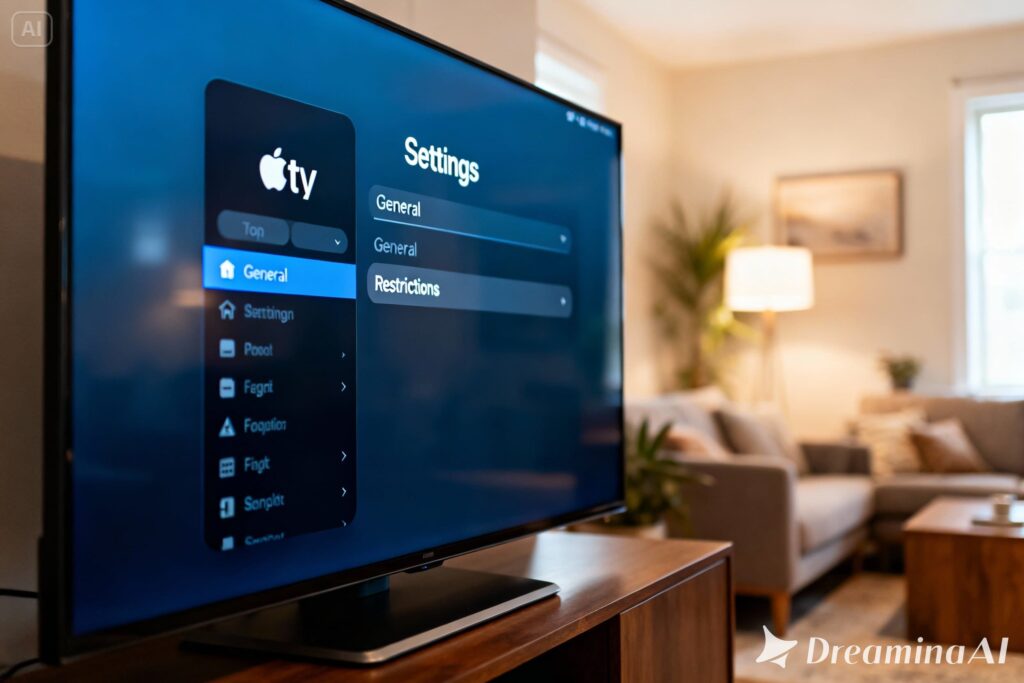
Many parents worry about their children accessing inappropriate content or making unauthorized purchases on streaming devices. The good news is that Apple TV lets you set restrictions to manage exactly what appears on your screen. Once you understand how these controls work, you can create a safer viewing environment for your whole family.
Setting up these protections takes just a few minutes but gives you ongoing peace of mind. You can customize restrictions based on your family’s needs and adjust them as your children grow older.
Key Takeaways
- You can restrict content by age rating and block explicit material through Apple TV’s built-in parental controls
- Setting up a passcode prevents kids from changing restrictions or making purchases without permission
- Regular reviews of your parental control settings help ensure protection stays effective as new apps and content become available
Understanding Apple TV Parental Controls
Apple TV includes built-in tools that let you control what content your family can access and prevent unauthorized purchases. These settings work across Apple TV devices and help you create age-appropriate viewing limits.
What Are Parental Controls on Apple TV?
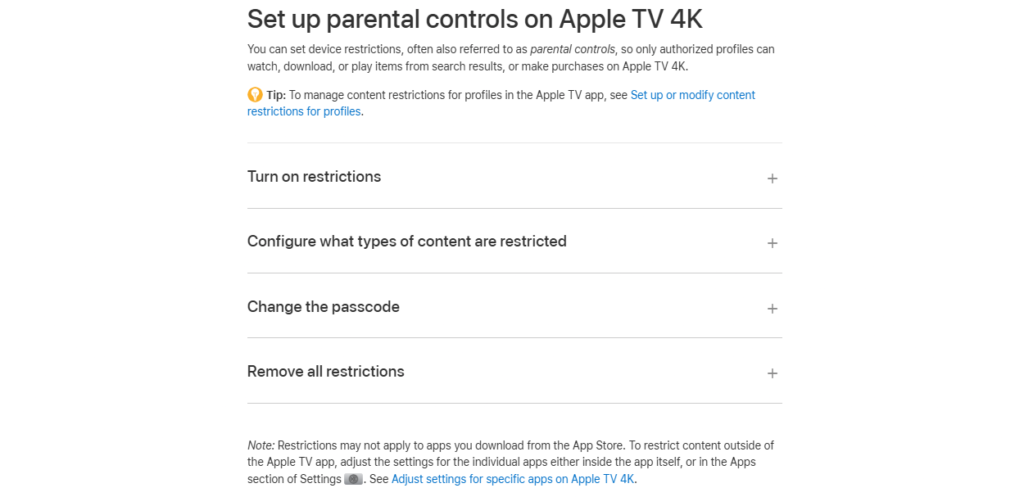
Parental controls on Apple TV are settings that restrict certain content so only authorized profiles can watch, play, or make purchases. You can block specific movies, shows, apps, and music based on content ratings.
These controls require a four-digit passcode that you create. Without this passcode, viewers cannot access restricted content or change the settings you’ve chosen.
The restrictions stay active until you turn them off or modify them. You can temporarily disable all restrictions and turn them back on later, and your original settings will remain intact.
Types of Restrictions Available
You can limit content based on age ratings for movies and TV shows. The system lets you block content rated above certain levels, such as PG-13 or TV-14.
Purchase restrictions prevent unauthorized buying or renting of content. You can require a password for all purchases or disable buying entirely.
Explicit content filters block music, music videos, and podcasts with explicit labels. This keeps inappropriate audio content away from younger viewers.
App restrictions let you limit access to specific apps and prevent new app installations. You can also block certain built-in Apple TV features like multiplayer games or screen recording.
If you use Family Sharing, you can enable Ask to Buy, which requires your approval before kids can purchase items.
Supported Apple TV Devices and Apps
Apple TV 4K supports the full range of parental control features. Apple TV HD (4th generation and later) also includes these same restriction capabilities.
You access parental controls by pressing and holding the remote to open Control Center, then selecting the settings icon. Alternatively, navigate to Settings > General > Restrictions.
The controls work across all apps on your Apple TV, including Apple TV+, iTunes, and third-party streaming services. Each app respects the ratings and restrictions you set.
For the Apple TV app on other devices like iPhones or iPads, you need to configure parental controls through that specific device’s settings.
How to Set Up and Customize Parental Controls
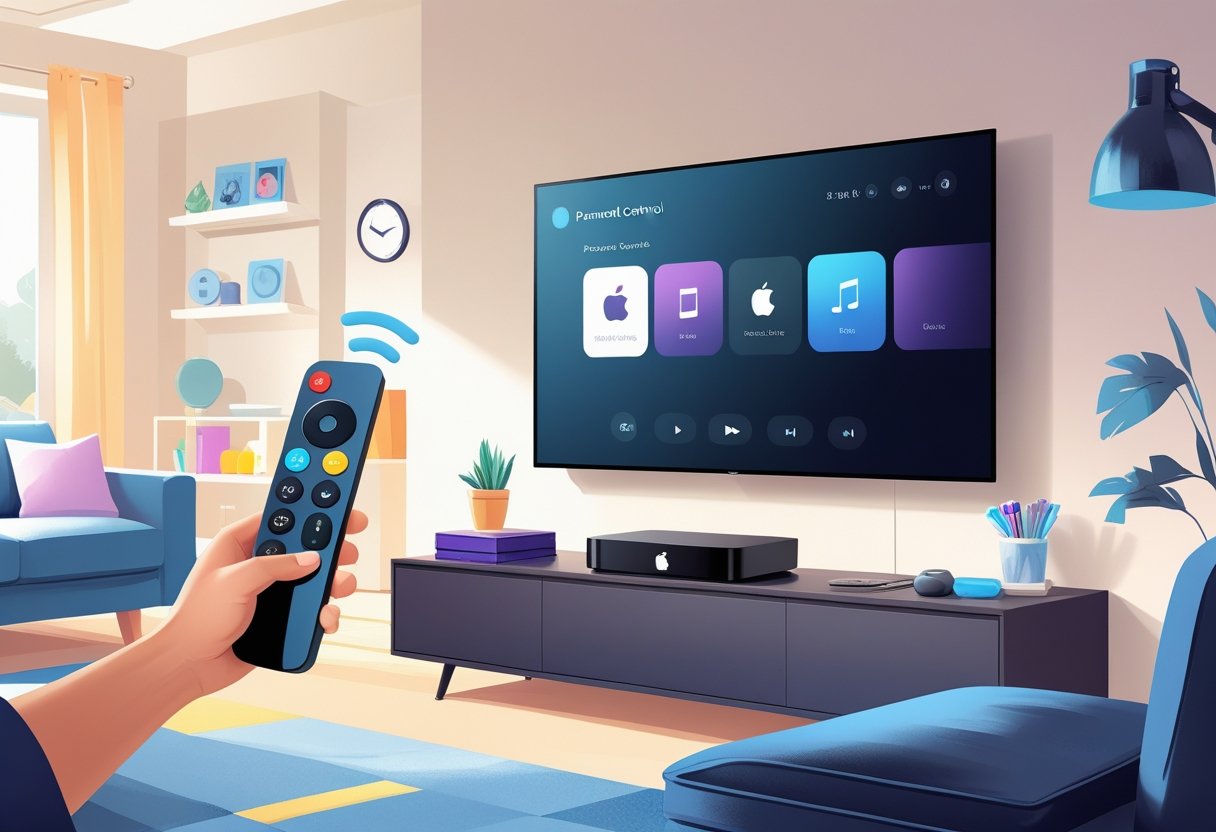
Apple TV offers built-in parental controls through its Restrictions feature, which lets you protect content with a passcode and limit what viewers can watch or purchase. You can customize these settings to match your family’s needs by adjusting age ratings, blocking specific content types, and controlling App Store access.
Enabling Restrictions and Passcode Protection
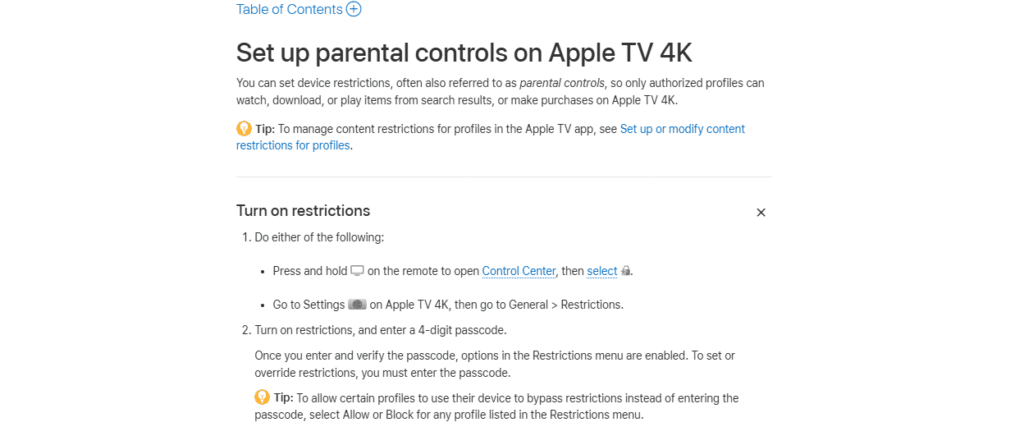
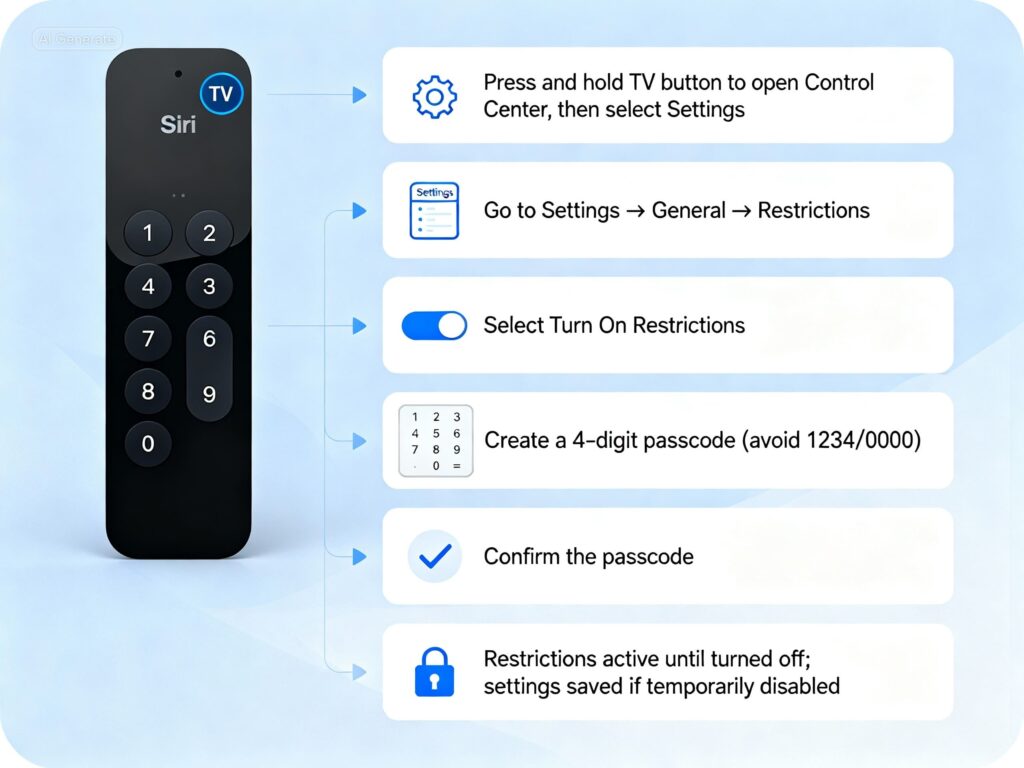
You need to turn on Restrictions before you can set any parental controls on your Apple TV. Press and hold the TV button on your Siri Remote to open Control Center, then select the settings icon. You can also navigate to Settings > General > Restrictions from the main menu.
Select “Turn On Restrictions” to begin the setup process. You’ll be asked to create a 4-digit passcode that will be required to change any restriction settings or view blocked content.
Enter your chosen passcode and confirm it by entering the same numbers again. Choose a code that’s easy for you to remember but hard for children to guess. Don’t use obvious combinations like 1234 or 0000.
Once enabled, the Restrictions menu stays active until you manually turn it off. If you temporarily disable restrictions, your original settings remain saved and automatically restore when you turn the feature back on.
Adjusting Content and Age Ratings
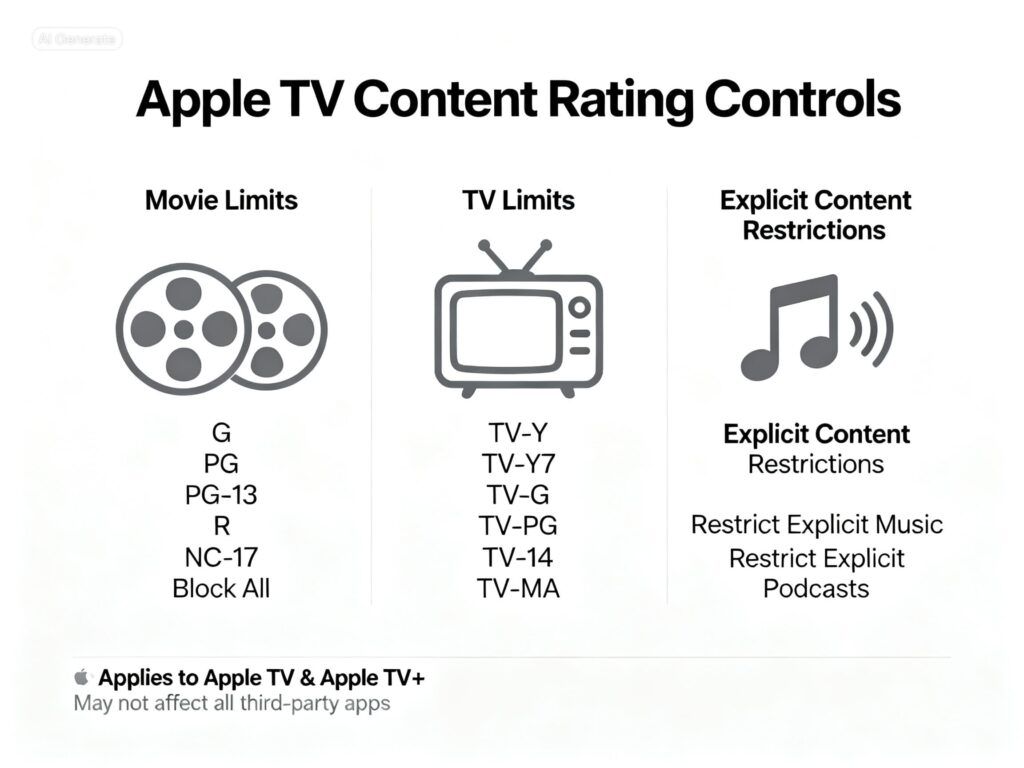
The content rating controls let you block movies, TV shows, and other media based on age-appropriate ratings. Navigate to the Restrictions menu and select “Movies” to set a maximum rating level. Options include G, PG, PG-13, R, NC-17, or you can block all movies entirely.
Select “TV Shows” to apply similar limits based on TV ratings like TV-Y, TV-Y7, TV-G, TV-PG, TV-14, or TV-MA. You can also restrict explicit content by toggling options for music, podcasts, and other media that may contain mature themes or language.
Apple TV restrictions apply to the Apple TV app and Apple TV+ content. However, restrictions may not apply to all third-party apps, so you should check individual streaming service settings for additional controls.
Managing Purchases and App Store Access
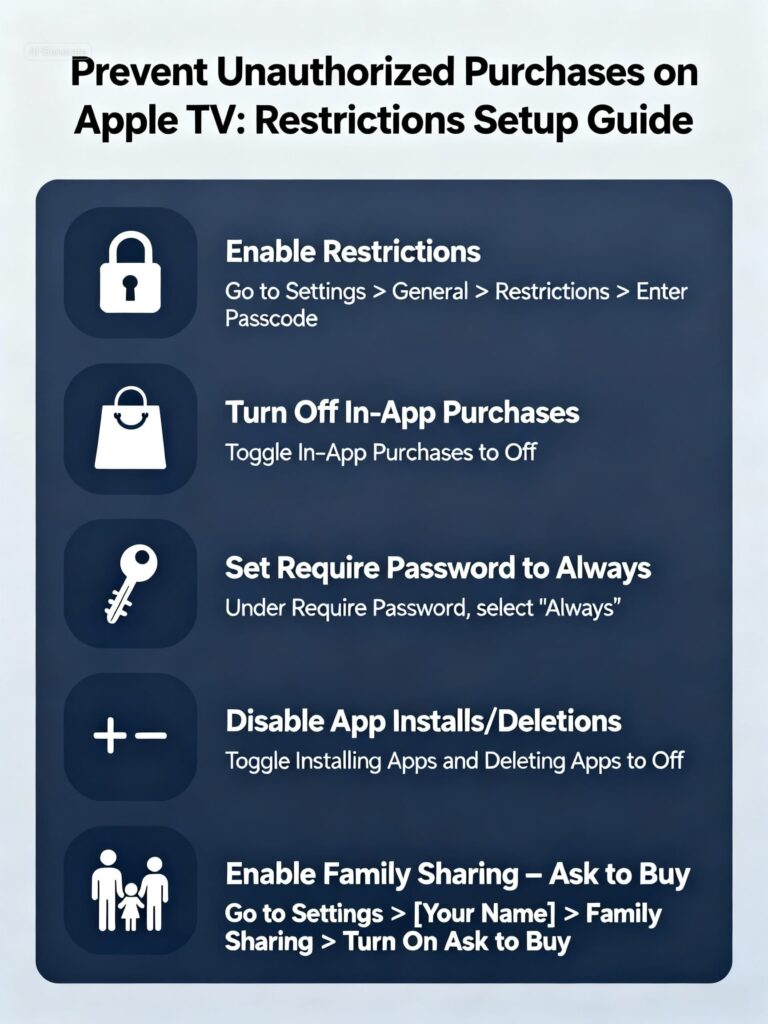
You can prevent unauthorized purchases by restricting access to the App Store and iTunes Store. In the Restrictions menu, select “Purchases and Rentals” to control buying options. Toggle “In-App Purchases” to Off to block purchases made within apps.
Set “Require Password” to “Always” so every purchase requires authentication, even for free downloads. You can also completely disable the ability to install or delete apps by turning off those options in the Restrictions menu.
If you use Family Sharing, you can enable Ask to Buy on your iPhone or iPad. This feature requires children to get your approval before making any purchase on Apple TV or other devices connected to your family account.
Advanced Parental Control Features and Family Management
Apple TV offers several tools that work together to manage content access and screen time across your household. You can create separate profiles for each family member, link devices through Family Sharing, and set limits that extend beyond just content ratings.
Using Multiple User Profiles
Multiple user profiles let each person in your home have their own viewing experience with customized parental controls. You can create profiles through Settings > Users and Accounts on your Apple TV.
Each profile maintains its own watch history, recommendations, and restriction settings. This means you can set strict limits for younger children while giving older kids more freedom.
When you switch between profiles, the device applies that person’s specific content restrictions automatically. Kids can’t access another profile without the password, which keeps your parental controls effective across all family members who use the device.
Integrating with Set Up Family Sharing
Family Sharing connects your Apple devices and lets you manage purchases and content across your entire family. You can set up parental controls with Family Sharing using your iPhone or iPad to control what family members can buy on Apple TV.
The Ask to Buy feature requires kids to get your approval before purchasing any content. You’ll receive a notification on your device when your child requests something, and you can approve or decline it instantly.
Family Sharing also lets you share subscriptions like Apple TV+ with up to five family members. You control which content each person can access based on their age and the restrictions you’ve set for their account.
Controlling Game Center and Multiplayer Options
Game Center settings let you manage who your children can play with and what information they can share. You can restrict multiplayer games, prevent friend requests from strangers, and control profile privacy.
Access these controls through Settings > Users and Accounts, then select your child’s profile. You can disable multiplayer games completely or limit them to friends only.
Screen recording and sharing options can also be restricted to prevent kids from broadcasting gameplay or sharing content without supervision.
Screen Time and Device-Wide Content Limits
Screen Time works differently on Apple TV compared to other Apple devices. While you can’t set daily time limits directly on Apple TV, you can manage overall device usage through Family Sharing on your iPhone or iPad.
You can restrict specific apps, block content changes, and prevent purchases without a password. These Apple TV restrictions apply across the entire device when enabled.
Important note: Third-party apps like Netflix or Disney+ may have their own parental controls that work separately from Apple TV’s built-in restrictions. You’ll need to configure these apps individually within their own settings menus to ensure complete protection.
Maintaining Safe Viewing on Apple TV Over Time
Parental controls need regular updates as your children grow and content libraries change. Keeping your passcode secure and understanding system limitations helps you maintain effective content restrictions long-term.
Reviewing and Updating Restrictions
You should review your Apple TV parental controls every few months to match your child’s age and maturity level. Children’s viewing needs change as they get older, so restrictions that worked last year might be too strict or too lenient now.
Check the content ratings you’ve blocked in your restrictions settings. Go to Settings, then General, then Restrictions to see all your current limits. Update the allowed ratings for movies, TV shows, and apps based on what’s appropriate now.
Look at your purchase and rental restrictions too. Kids who once needed full purchase blocks might be ready for Ask to Buy features instead. Review which apps and features are restricted, like explicit music or multiplayer games.
Test your settings by browsing content with your restrictions active. This shows you exactly what your kids can access.
Tips for Passcode Security and Monitoring
Your 4-digit restrictions passcode is the key to all your Apple TV parental control settings. Never share it with your children or write it somewhere they can find it.
Change your passcode every six months or if you suspect your kids learned it. Pick numbers that aren’t obvious like birthdays or simple patterns like 1234.
Watch for signs your restrictions aren’t working. If you see content in the viewing history that should be blocked, your passcode might be compromised. You can temporarily turn restrictions off and back on using the same passcode, but change it if security is the issue.
Check your Apple TV viewing history regularly. This helps you spot any inappropriate content that got through or indicates if someone accessed restricted material.
Limitations and Best Practices
Apple TV parental controls only restrict content on your Apple TV device. They don’t apply to other devices your kids use like phones or tablets unless you set separate controls there.
Third-party apps may have their own rating systems that don’t match Apple’s restrictions perfectly. Some content might slip through despite your settings. Create additional profiles within apps like Netflix or Disney+ for extra protection.
Parental controls work best when combined with open conversations about screen time and appropriate content. Technology alone can’t replace active parenting and media literacy discussions.
Set up Family Sharing to enable Ask to Buy across all devices. This gives you approval power over purchases your kids try to make. Remember that restrictions reset to your previous settings when you turn them back on after temporarily disabling them.
Relevant Links: How to Watch Apple TV on Samsung TV Without App: Simple Streaming Solutions
Frequently Asked Questions
Parents need clear answers about managing viewing restrictions and fixing common issues with Apple TV controls. You can adjust settings directly on the device or through connected Apple products to create a safer viewing environment.
How do I set up time limits for content viewing on Apple TV?
Apple TV does not have a built-in feature to set specific time limits for content viewing. You need to use Screen Time on your iPhone or iPad to manage how long family members can use the Apple TV app.
Open Screen Time settings on your iOS device and select your child’s name from the Family list. You can then set daily time limits for the Entertainment category, which includes the Apple TV app.
These limits work when your child uses their own Apple ID to sign in. The restrictions sync across all devices connected to that account.
What should I do if Apple TV parental controls are not functioning correctly?
First, check that you entered the correct restrictions passcode. Go to Settings, then General, and select Restrictions to verify your settings are turned on.
If controls still don’t work, restart your Apple TV by unplugging it for 30 seconds. After restarting, check that your device has the latest tvOS update installed.
Restrictions may not apply to all third-party apps on your device. You need to check individual app settings for additional parental control options within those apps.
Is it possible to manage Apple TV parental controls using an iPhone or iPad?
Yes, you can use your iPhone or iPad to limit content your family members can purchase when you set up Family Sharing. This includes enabling Ask to Buy, which requires parental approval before kids can make purchases.
If your child uses the Apple TV app on an iPhone or iPad, you need to access parental controls through that specific device. Open the Apple TV app, tap the sidebar, then go to Settings and choose Restrictions.
Screen Time settings on iOS devices can also control access to the Apple TV app across all connected devices. These settings work when family members sign in with their own Apple IDs.
Can I set different content restrictions for individual users on the same Apple TV?
Apple TV does not support multiple user profiles with different restriction levels on the device itself. The restrictions you set apply to everyone who uses that Apple TV.
To create different viewing experiences for family members, each person needs their own Apple device with the Apple TV app. You can then set individual restrictions through Screen Time for each family member’s Apple ID.
Family Sharing lets you manage what each family member can access and purchase. However, the physical Apple TV device uses one set of restrictions for all viewers.
How can YouTube be blocked or restricted on Apple TV for child accounts?
You can block the YouTube app entirely by going to Settings, then General, and selecting Restrictions. Enter your passcode and turn off the option to allow YouTube under Apps.
YouTube has its own parental controls called Restricted Mode within the app. Open YouTube on Apple TV, go to Settings, and turn on Restricted Mode to filter out mature content.
For more control over YouTube access, you can delete the YouTube app from your Apple TV completely. Press and hold the YouTube app icon on the home screen until it jiggles, then press the Play/Pause button and select Delete.
About The Author

Hassan Zaka
I am an expert in accounting and possess diverse experience in technical writing. I have written for various industries on topics such as finance, business, and technology. My writing style is clear and simple, and I utilize infographics and diagrams to make my writing more engaging. I can be a valuable asset to any organization in need of technical writing services.
Follow Us:LinkedinTwitter