Overview of Tv Control Setup with Amazon Alexa
Basic ways to use Alexa with a TV include plugging in a Fire TV stick or using a Fire Edition Smart TV with built-in Fire TV. Set up an external Fire TV via HDMI and follow on-screen steps with the Alexa Voice Remote. Link an Echo by enabling Fire TV in the Alexa app and selecting Link Devices to allow hands-free control, including HDMI-CEC power/input control. For Android TV (Sony) use the TV Control Setup with Amazon Alexa app and enable the Android TV skill in Alexa. Brand-specific steps: LG use Set-Up TV for Amazon Alexa and LG SmartThinQ skill; Vizio uses SmartCast Extras > Voice Settings and web pairing.
Quick Solutions to Questions related to Alexa TV Setup:
-
How can I use Alexa with my TV?
Use a plug-in Amazon Fire TV stick or Fire TV 4K streamer, a Fire Edition Smart TV, or link an Echo to a Fire TV device via the Alexa app for hands-free control. -
How do I set up an external Fire TV device?
Plug in the Fire TV power adapter, connect via HDMI, turn on the TV, select the Fire TV source, then follow on-screen setup using the Alexa Voice Remote to select language, Wi-Fi, account, and apps. -
Can I control Fire TV hands-free with an Echo?
Yes; open the Alexa app, go to Music, Video, and Books > Fire TV, follow setup, and tap Link Devices to control Fire TV from an Echo without using the remote. -
Does HDMI-CEC affect Alexa control?
Yes; if your TV supports HDMI-CEC, Alexa can command Fire TV to switch the TV to the Fire TV HDMI input and turn the TV on or off. -
How do I connect an Android TV (Sony) to Alexa?
Open TV Control Setup with Amazon Alexa on the TV, follow on-screen steps, enable the Android TV skill in the Alexa app, link accounts, and ask Alexa to discover devices. -
What are the brand-specific steps for LG and Vizio TVs?
For LG, launch Set-Up TV for Amazon Alexa on webOS, log into LG account, enable LG SmartThinQ skill in Alexa and link accounts. For Vizio, open SmartCast Extras > Voice Settings > Pair Display, visit vizio.com/alexa, enter the PIN shown, then enable Alexa skills and link accounts in the Alexa app.
Basic way you can use Alexa with your TV is via a plug-in Amazon Fire TV stick or Fire TV 4K media streamer, or by using a Fire Edition Smart TV (a TV that has Fire TV functionality built-in).
If using an external Fire TV device with your TV (HDMI connection required), go through the required setup procedure. You can then speak voice commands using Alexa by pressing the microphone button on the remote control.
If you have a Fire Edition TV, you can use its provided Alexa Voice-enabled remote control in the same way.
However, if you have an Amazon Echo or similar Alexa-enabled smart speaker in your home, you can link it to a Fire TV streamer or Fire Edition TV and operate Fire TV features using hand’s free voice commands instead of having to press a microphone button on a remote control first.
Fire TV Control setup with Amazon Alexa
The Fire Edition Smart TV even has integrated Fire TV capabilities. If you don’t have it, but have an external Fire TV device, you need to plug it in and set it up. To plug the device in:
- Take the Fire TV device’s power adapter and plug it in.
- Insert the USB cable into an available HDMI port. The ports are usually on the back of the TV.
- Turn your TV on.
- Locate the Fire TV. The button that usually changes the signal is labeled “Source.”
The next step is setting it up:
- When the device prompts you to, take your Alexa Voice Remote and press the “Play” button.
- Select the preferred language and Wi-Fi network.
- Enter the Wi-Fi password, if it has one.
- Choose “Connect.”
- See which Amazon account you want to connect with.
- Let Amazon know if you’d like it to keep your Wi-Fi password and if you want to turn parental controls on.
- Finally, select “Choose Apps” and see which app you’d like to get. When ready, press the “Play” button on your remote and wait for the process to finish.
If you’ve already done this, all that remains is connecting your Fire TV with your Echo or similar device that supports Alexa:
- Open the Alexa app on your smartphone.
- Tap the icon with three lines that’s in the top-left corner.
- Choose “Music, Video, and Books.”
- Select “Fire TV.”
- Follow the rest of the setup instructions.
- Tap “Link Devices.” This option should be confirmed.
After the link is confirmed you can use your Echo to control Fire TV features and content access, which can be viewed on your TV
If your TV has the HDMI-CEC feature, you can also use Alexa to send a voice command to a plug-in Fire TV streamer that will switch the TV to the HDMI input that the Fire TV is connected to.
In addition, HDMI-CEC allows Alexa to tell Fire TV to turn your TV on or off.

More Info: Alexa controlled blinds
All Android TV Control setup with Amazon Alexa (Sony)
To connect your Android TV to the Amazon Alexa App, please use the following steps:
- On your supplied remote control, press the HOME button.
- Scroll down to Apps.
- Under Apps, locate TV Control Setup with Amazon Alexa.
- Select the TV Control Setup with Amazon Alexa app.
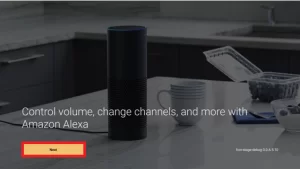
 5. At the initial setup screen, click Next to continue. Then, follow the on-screen instructions to complete the setup.
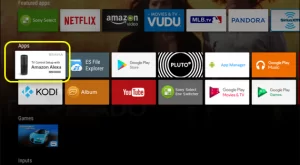 5. At the initial setup screen, click Next to continue. Then, follow the on-screen instructions to complete the setup.
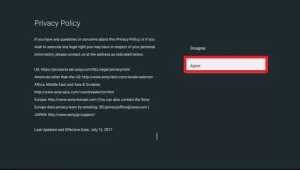
 6. Agree to the Privacy Policy and go to the next screen.
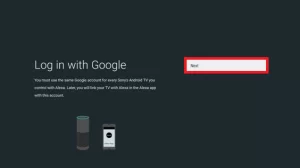
7. Under the Log in with Google screen, select Next.
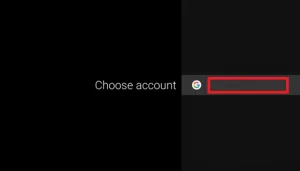
8. Choose your Google account and go to the next step.
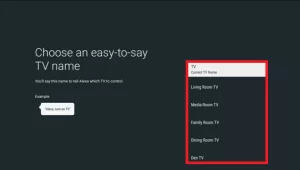
9. Choose an easy-to-say TV name.
NOTE: Pick from the list or create your own TV name.
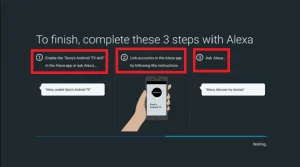
10. Complete the three last steps
- On your phone, enable the Android TV skill in the Alexa app.
- Link your accounts.
- Ask Alexa to discover your devices.
11. Select done to exit from the setup. Otherwise, ask Alexa to try the other functions available.
More Info: Smart Light Switch Alexa
Supported TV models
If your TV is an applicable model, the TV Control Setup with Amazon Alexa app will be in the Apps list. You cannot install this app yourself.
For more precise TV brand Setup
To make it more easy and precise about each popular Smart tv brand and how to setup with Amazon Alexa
For LG TVs:
- Launch the Set-Up TV for Amazon Alexa Appfrom the home screen of your LG TV running the webOS 4.0 TV operating system or higher).
- Follow the directions and log into your LG account(or create one) and select the name of your TV.
- Go to the mobile setup guide page, and go to the Alexa Appon your smartphone to enable LG SmartThinQ Alexa skill and link your accounts.
- Complete any additional setup instructions prompted by your TV.
For Vizio TVs:
- Launch the Vizio TV SmartCast home screen.
- Using your TV remote, press up and click on the Extras tab on the menu bar.
- Select Voice Settings, and then Pair Display.
- Using your smartphone go to vizio.com/alexaand enter the PIN shown your TV screen.
- When prompted, return to the Alexa App on your phone to enable Alexa voice skills, link accounts, and devices.
About The Author

Hassan Zaka
I am an expert in accounting and possess diverse experience in technical writing. I have written for various industries on topics such as finance, business, and technology. My writing style is clear and simple, and I utilize infographics and diagrams to make my writing more engaging. I can be a valuable asset to any organization in need of technical writing services.
Follow Us:LinkedinTwitter