Overview of Adorcam Manual PDF
Adorcam is a 100% wire-free, battery-powered IP security camera controlled via the Adorcam mobile app (Android/iOS). It supports 2.4GHz WiFi, PIR motion detection, night vision, two-way audio, TF card storage (4–128GB), and event-based recording (no 24/7). Setup requires inserting a TF card (optional), powering on, and connecting through the app. No official PC or browser access exists; troubleshooting covers connectivity, permissions, TF card for recordings, and resets. LED indicators show device states like setup, recording, and firmware updates.
Quick Solutions to Questions related to Adorcam Security Camera:
-
How do I download the Adorcam app?
Go to Google Play Store or Apple App Store, search for Adorcam, then download and install. -
Can Adorcam record continuously 24/7?
No, the battery camera does not support 24/7 continuous recording; it records events triggered by motion detection. -
Does Adorcam support 5GHz WiFi?
No, Adorcam supports only 2.4GHz WiFi and does not support 5GHz. -
What should I do if the camera fails to add in the app?
Enable the Adorcam app mobile data permissions and ensure the camera is in WiFi setup mode close to the router. -
How can I get alarm video recordings?
Insert a TF card (4GB–128GB, Class 10 recommended); without a TF card the system stores only snapshot photos.
Adorcam Manual PDF
Adorcam Security Camera: Complete Setup Guide, App Download, Login & Troubleshooting
If you’re looking for a simple, wire-free home security solution, the Adorcam Security Camera is designed to be flexible, easy to install, and fully controlled from your smartphone.
This guide covers everything you need to know:
Adorcam app
Adorcam download
Adorcam for PC
Adorcam website
Adorcam manual
Adorcam login
Adorcam troubleshooting
Adorcam Security camera features
Let’s break it down step by step.
What Is the Adorcam Security Camera?
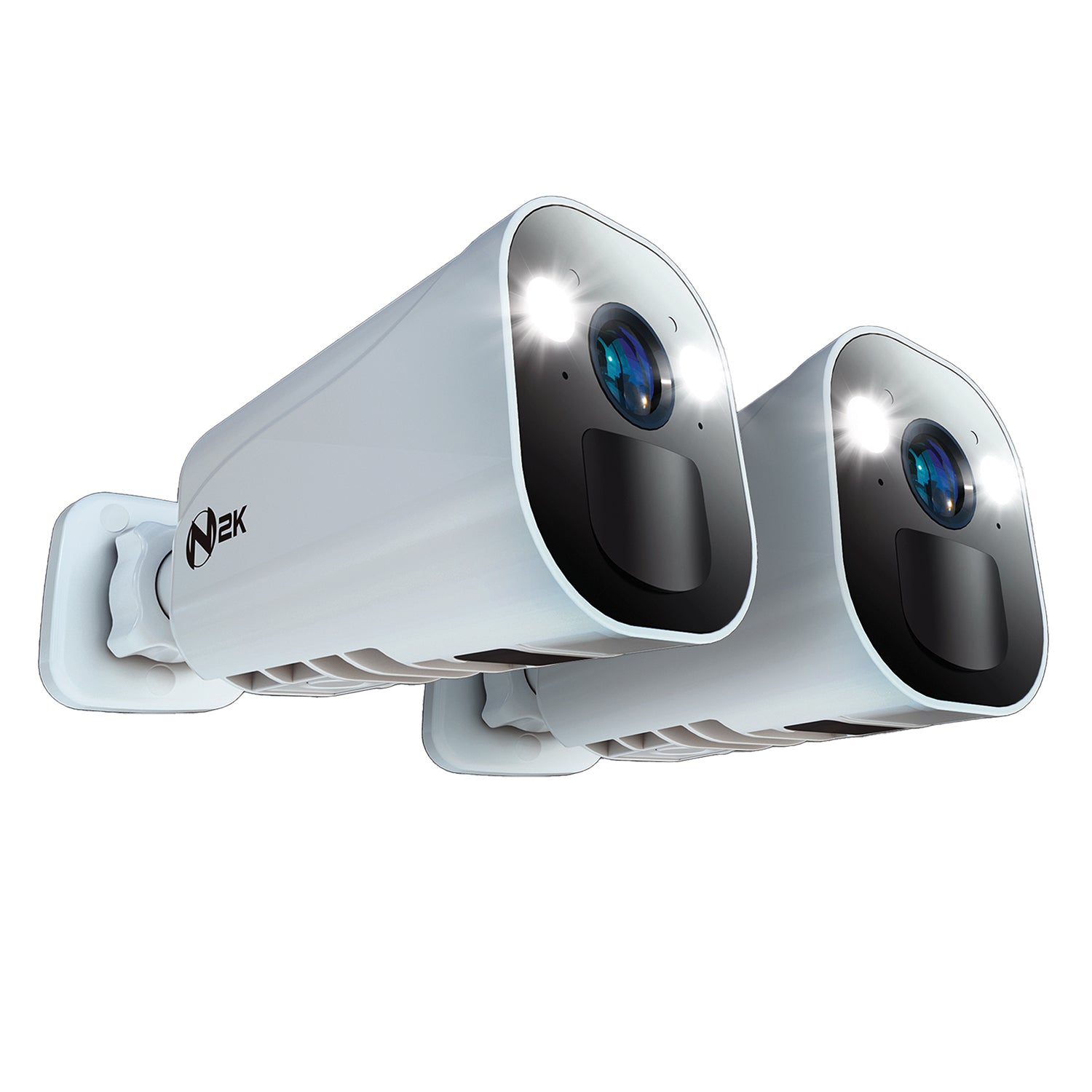


The Adorcam camera is a 100% wire-free IP camera with a rechargeable battery, designed to be placed anywhere and monitored directly from your phone.
Key Highlights
Rechargeable battery-powered
PIR human motion detection
Night vision support
Two-way audio (microphone + speaker)
TF card storage (up to 128GB)
2.4GHz WiFi support (not 5GHz)
Real-time mobile monitoring
⚠️ Important: This battery camera does not support 24/7 continuous recording. It records events triggered by motion detection.
What’s Inside the Box?

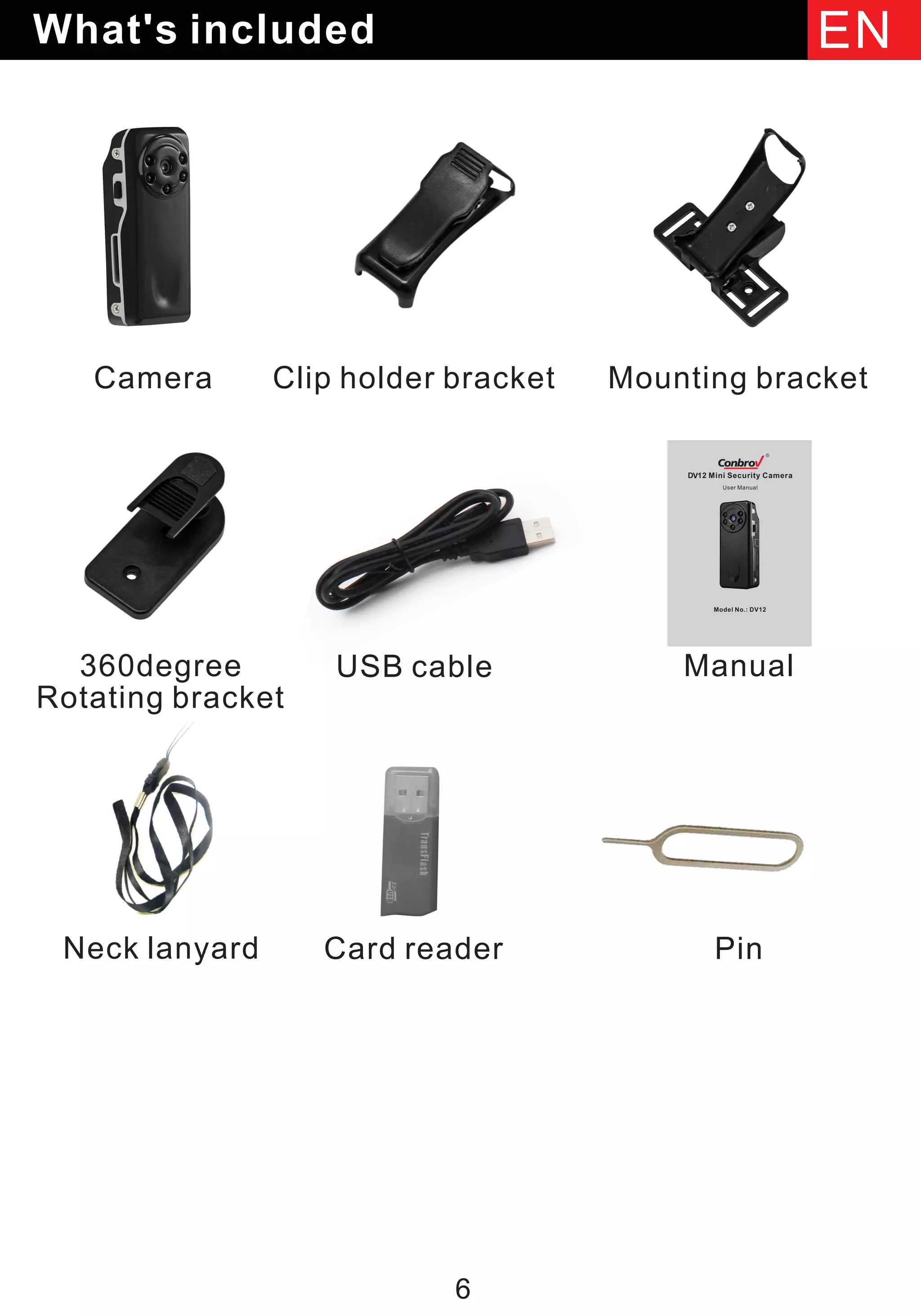

According to the Adorcam manual
Adorcam-User-Manual
, the package includes:
1 × Battery Camera
1 × Mounting Bracket
Screw set
1 × USB cable
Quick User Guide
Note: Power adapter is not included.
Adorcam App
The Adorcam app is the core control center for your camera. Everything — live view, motion alerts, playback, sharing — is handled inside the mobile app.
Features Inside the App
Live video streaming
Motion detection alerts
Event playback
Two-way audio
Night vision toggle
Battery status monitoring
WiFi signal monitoring
Device sharing
Adorcam Download (Android & iOS)
To get started:
Go to Google Play Store (Android) or Apple App Store (iPhone).
Search for “Adorcam”
Download and install.
When launching the app for the first time, allow:
Mobile data & WiFi access
Push notifications
Without these permissions, the camera cannot connect or send alerts.
Adorcam Login & Account Registration
Before adding your camera:
Open the app.
Tap Register.
Sign up using your email.
Verify and log in.
After registration, use your credentials for future Adorcam login access.
How to Add Camera to Adorcam App

Step 1: Insert TF Card (Optional but Recommended)
Supports 4GB–128GB
Class 10 recommended
Required for alarm video recording
Without TF card → system stores snapshot photos only.
Step 2: Power On the Camera
Press and hold power button for 5 seconds.
If it doesn’t turn on, charge for 15 minutes first (DC5V 1A/2A).
Wait for red light blinking slowly (WiFi setup mode).
Step 3: Connect to WiFi
⚠️ Very Important:
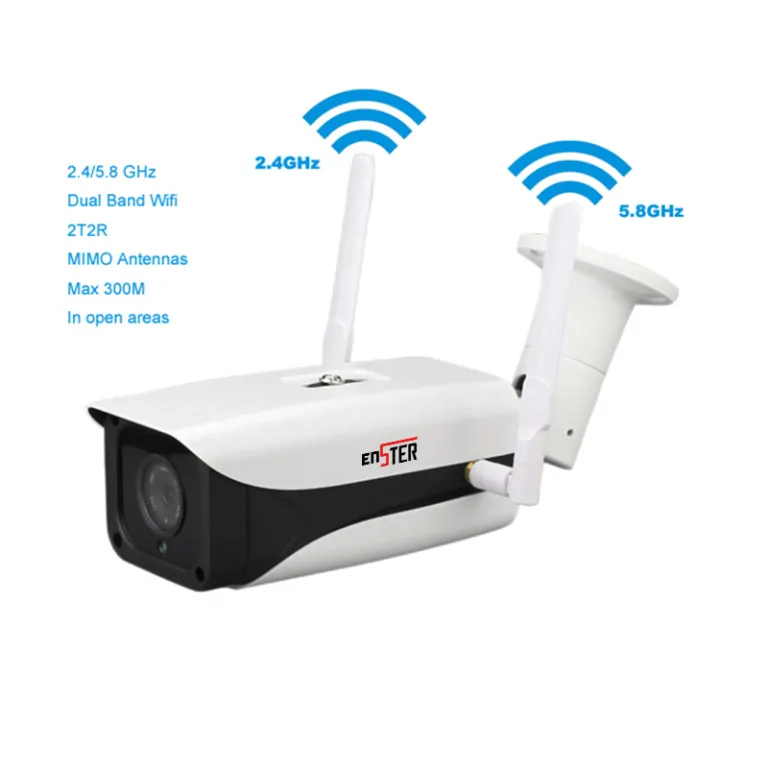
Only supports 2.4GHz WiFi
Does NOT support 5GHz
Keep camera within 1–3 feet of router during setup.
In the app:
Tap Add Device
Select Battery Camera
Enter WiFi password
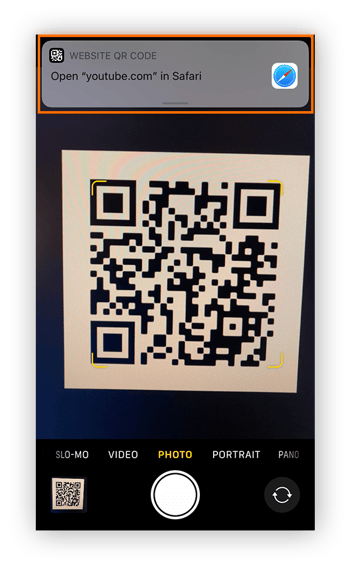
Scan QR code displayed on your phone
Wait for connection tone
Name your camera
Finish setup
Once connected, you can start live viewing immediately.
Adorcam Device Menu Explained
Inside the app, you’ll find:
Play (Live View)
Share
Snooze Alerts
Playback
Settings
Battery Status
WiFi Signal
Motion Detection
Night Vision
Sound Alarm
Record & Snapshot
Events
Security
You can also:
Restart device
Remove device
Manage power settings
Adjust motion sensitivity
Adorcam Security Camera Features in Detail
1. Motion Detection
Uses PIR sensor to detect human motion and trigger recording.
2. Two-Way Audio
Hold & Speak feature lets you talk through the camera.
3. Night Vision
Automatic infrared night vision for low-light monitoring.
4. Battery Performance
Charging time: 5–6 hours
No 24/7 recording (event-based only)
5. Device Sharing
You can share camera access with another Adorcam user.
Limitations:
Unlimited devices can be added.
Only 2 users can view simultaneously.
Adorcam for PC – Is It Available?
According to the manual
Adorcam-User-Manual
:
❌ The battery camera does not support PC software or browser access.
Adorcam works only through the mobile app (Android/iOS).
If you want to use it on a computer, the only workaround would be screen mirroring your phone — but there is no official Adorcam PC app.
Adorcam Website
The manual does not list an official dedicated web dashboard for monitoring. The system is app-based.
To download:
Visit your mobile app store
Search for “Adorcam”
There is no browser-based login portal mentioned in the manual
Adorcam Manual (Quick Summary)
The Adorcam manual
Adorcam-User-Manual
covers:
Packing list
Product details
App installation
Camera setup
Device menu
LED status explanation
Troubleshooting
FAQ
FCC compliance info
If you need the full guide, refer to:
Adorcam User Manual PDF
Adorcam-User-Manual
LED Indicator Status Explained
Understanding the light signals helps a lot:
| LED Status | Meaning |
|---|---|
| No light | Sleep / Off |
| Solid Red | Charging |
| Slow Red Flash | Awaiting WiFi setup |
| Fast Red Flash | Connecting to WiFi |
| Solid Blue | Alarm recording |
| Slow Blue Flash | Live view mode |
| Fast Blue Flash | Firmware upgrading |
Adorcam Troubleshooting Guide
Here are common problems and solutions:
1. Unable to Connect
Check WiFi name & password
Ensure WiFi is 2.4GHz
Move closer to router
2. Failed to Add Device
Enable Adorcam app mobile data permissions.
3. No Alarm Push Notifications
Enable app notifications in phone settings.
4. No Alarm Video Recording
Insert TF card.
5. Change WiFi Network
If online → change inside app.
If offline → reset camera and reconnect.
6. Reset Camera
Press power button twice until you hear a tone.
Important Limitations to Know
❌ No 5GHz WiFi
❌ No PC software
❌ No 24/7 continuous recording
⚠️ Works offline only if previously connected to WiFi
Final Thoughts
The Adorcam Security Camera is ideal if you want:
A wire-free setup
Easy smartphone monitoring
Motion-based alerts
Affordable home security
It’s simple to install and designed for everyday home use rather than advanced enterprise security.
If you’re comfortable using mobile apps and 2.4GHz WiFi, Adorcam provides a reliable, flexible solution for indoor or outdoor monitoring.
Relevant:
Adorcam Troubleshooting – Solutions for Connection Problems
About The Author

Hassan Zaka
I am an expert in accounting and possess diverse experience in technical writing. I have written for various industries on topics such as finance, business, and technology. My writing style is clear and simple, and I utilize infographics and diagrams to make my writing more engaging. I can be a valuable asset to any organization in need of technical writing services.
Follow Us:LinkedinTwitter