
Overview of How to Fix WIFI Not Working On Samsung Tv But Working On Other Devices |Quick Fixes:
This guide offers step-by-step Samsung TV Wi‑Fi troubleshooting when other devices connect fine. It covers quick power cycles, cold boots, checking Date & Time and Location settings, repeating power resets, and full TV and router resets. It also includes an odd but reported fix (lightly tapping near the Samsung logo), suggests using Ethernet as a temporary workaround, and recommends contacting a technician if hardware issues persist.
Quick Solutions to Questions related to Samsung TV Wi‑Fi Troubleshooting:
-
How do I power cycle my Samsung TV to fix Wi‑Fi?
Unplug the TV, press and hold the power button 10–15 seconds, plug it back in while holding the button until the TV restarts. -
How do I perform a cold boot on my Samsung TV?
Unplug the TV, press and hold the power button for at least 30 seconds, wait 1–2 minutes, then plug the TV back in and turn it on. -
Can incorrect date and time affect my Samsung TV Wi‑Fi connection?
Yes; set Settings > Device Preferences > Date & Time to Automatic Date & Time and Use Network-Provided Time to help resolve syncing issues. -
What location setting should I use for Wi‑Fi on my Samsung TV?
Go to Settings > Device Preferences > Location and set it to Use Wi‑Fi to Estimate Location. -
What should I do if resets and settings changes don't fix the Wi‑Fi?
Reset the TV via Settings > General > Reset (enter default PIN 0000), reset the router by holding its reset button ~10 seconds, try Ethernet, or contact a technician for possible hardware issues.
It can be frustrating when your Samsung TV won’t connect to Wi-Fi 😩, especially when all your other devices, like phones 📱, laptops 💻, and tablets, are working fine on the same network. But don’t worry – you’re not alone, and you’re certainly not out of options. In this guide, we’ll walk you through simple yet effective Samsung TV Wi-Fi troubleshooting steps to get your TV back online. Whether you’re facing a Samsung TV not connecting to Wi-Fi issue, or just need a quick fix, these methods should help you resolve the problem and get back to streaming. 🎥🍿
Fix WIFI Not Working On Samsung Tv But Working On Other Devices:
⚡ Quick Power Cycle: A Simple but Effective Start
Before diving into the more detailed solutions, let’s begin with the simplest step – a quick Samsung TV power cycle. This is often the easiest way to reset your TV and clear any minor glitches that might be causing Wi-Fi connection issues.
How to do it:
1۔ Unplug the TV from the power outlet.
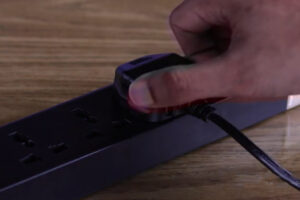
2۔ Press and hold the power button on the TV for about 10-15 seconds.
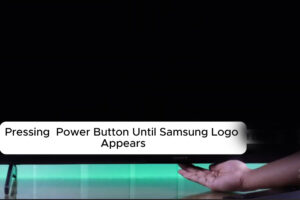
3۔ While still holding the power button, plug the TV back in.
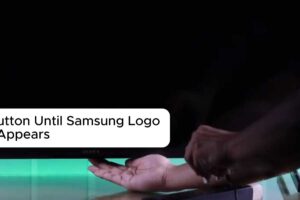
4۔ Continue holding the power button until the TV restarts. 🔄
This power cycle can help reset the internal components of the TV, potentially fixing any temporary Wi-Fi connection problems. If this doesn’t solve the issue, don’t worry! There are other methods you can try. 👇
🔄 Cold Boot Your TV: Let’s Fully Restart Everything
Sometimes, a simple restart isn’t enough. To give your Samsung Smart TV a deeper reset, you’ll need to perform a cold boot. This process will ensure all residual power is cleared, which can help solve more stubborn connection issues.
Steps for a Cold Boot:
1۔ Unplug the TV from the wall.
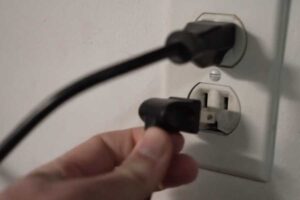
2۔ Press and hold the power button for at least 30 seconds. This will discharge any remaining power. ⏳

3۔ Wait for about 1-2 minutes after releasing the Power button.
4۔ Plug the TV back in and turn it on. 🎬
When the TV powers back up, look for a red light on the front to confirm it’s rebooting. If the TV starts up without issues but still won’t connect to Wi-Fi, it’s time to try some other solutions.
Here is a Visuals of Fixing WIFI Not Working On Samsung Tv But Working On Other Devices:

⏰ Check Your Date and Time Settings
Yes, the date and time settings on your TV might sound unrelated to Wi-Fi issues, but they can actually affect your connection. Incorrect date and time can cause synchronization issues with your network.
Here’s how to fix it:
- Navigate to Settings > Device Preferences.
- Select Date & Time and set it to Automatic Date & Time.
- Choose Use Network-Provided Time.
Now, try connecting to Wi-Fi again and see if that does the trick. 🤞
🌍 Adjust Your Location Settings
Your Samsung TV uses location services to help connect to your Wi-Fi network, so ensuring that these settings are correct can make a big difference in resolving Wi-Fi connection problems.
To adjust location settings:
- Go to Settings > Device Preferences > Location.
- Set the location to Use Wi-Fi to Estimate Location.
With the location set correctly, try connecting to Wi-Fi once more.
🔄 Another Power Cycle: Sometimes, It’s Just About Resetting Again
If the previous steps haven’t worked, you might want to try another power cycle. Holding the power button for 15-30 seconds will reset the TV, and this can sometimes clear out any lingering Wi-Fi connection problems.
🔄 Reset Your TV and Router: A Fresh Start for Both
If none of the above solutions worked, it’s time to go a bit further and reset your TV. This will restore your TV settings to their default configuration, which could fix deeper issues.
Resetting Your TV:
- Head to Settings > General > Reset.
- Enter the default PIN (usually “0000”).
- Follow the on-screen prompts to reset.
You might also want to reset your router as well. Sometimes, it’s the router causing the issue, not the TV.
How to reset your router:
- Locate the reset button on the back of your router.
- Hold the button down for about 10 seconds.
- Wait for the router to restart, then try reconnecting your Samsung Smart TV to Wi-Fi. 📶
🧐 The Quirky Fix: Tapping the TV (Yes, Really!)
Okay, this one might sound strange, but hear us out. A tip from Reddit suggests lightly tapping the bottom center of the TV near the Samsung logo. It might sound like an old-school trick, but surprisingly, it’s worked for many Samsung TV owners facing Wi-Fi connection issues. Give it a gentle tap and see if it helps your TV connect to Wi-Fi. 🤔
🛠️ When All Else Fails: Consider Hardware Issues
If you’ve tried every step and your Samsung TV still won’t connect, it might be time to consider that the issue could be with the TV’s internal hardware. Before panicking, try connecting your TV to the internet using an Ethernet cable as a temporary solution. This will allow you to enjoy streaming while you wait for a more permanent fix. 🖥️
If you’re still having trouble, it’s time to get in touch with a technician for a closer look. It’s possible there’s an internal issue that needs to be addressed.
🏁 Conclusion
Fixing a Wi-Fi connection problem on your Samsung TV doesn’t have to be a headache. By following these simple troubleshooting steps, you’ll be back to watching your favorite shows in no time. Have you tried these fixes, or is your Samsung Smart TV still giving you trouble? Feel free to drop your thoughts or any questions in the comments – we’re always here to help! ✨
About The Author

Hassan Zaka
I am an expert in accounting and possess diverse experience in technical writing. I have written for various industries on topics such as finance, business, and technology. My writing style is clear and simple, and I utilize infographics and diagrams to make my writing more engaging. I can be a valuable asset to any organization in need of technical writing services.
Follow Us:LinkedinTwitter


