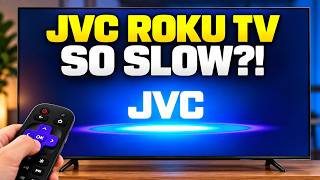
Overview of How To Reset TCL Roku TV with and without Remote: Every Working Method Step by Step
This article outlines four reliable methods to reset TCL Roku TVs, addressing models with and without remotes. It begins with a factory reset using a physical pinhole, followed by a hard reset via power and volume button combinations for models lacking a pinhole. A third method involves holding the power button while unplugging the device to force a reboot. Finally, a soft reset using specific remote button sequences is provided to unfreeze the TV without erasing data. The guide emphasizes patience during reboots and suggests trying methods in order of directness based on the specific model's features.
Quick Solutions to Questions related to Resetting TCL Roku TV:
-
How do I perform a factory reset using a pinhole?
Locate the tiny reset pinhole near the HDMI ports, press and hold it with a pen tip or paper clip while the TV is plugged in, and release when the TCL Roku logo appears. -
Can I reset my TCL Roku TV if there is no pinhole?
Yes, press and hold the physical power button along with the volume up button for 10 to 20 seconds, or try power plus volume down if that fails. -
What should I do if button combinations do not work?
Press and hold the power button on the panel, unplug the TV from the wall while holding the button, plug it back in, and release the button once the logo appears. -
How do I do a soft reset without deleting my data?
On your remote, press Home five times, Up once, Rewind two times, and Fast Forward two times to trigger an automatic reboot.
How To Reset TCL Roku TV with and without Remote
📺 Embedded Reset Troubleshooting Helper

If I need to reset tcl roku tv with and without remote, I do not guess. I follow the same order every time, because some TCL Roku TV models do not include the same buttons. One method might fail on one model, but another will work.
Below are the working reset options I use, from the most direct factory reset to the remote-based soft reset. Follow them in order and be patient. When resets start, the TV can reboot more than once.
🧭 Before You Start: Not Every TCL Roku TV Has the Same Reset Option
One important thing first: not every TCL Roku Roku TV has a reset button. Some models include a tiny reset pinhole. Others skip it entirely and rely on button combinations. If a method does not work, do not stress. Just move to the next one.
🔁 Method 1: Use the Reset Pinhole (Factory Reset)
This is the most direct reset. Some TCL Roku TVs have a tiny reset pinhole on the back or side of the TV. I look near the HDMI ports area, but it can be on the frame anywhere.
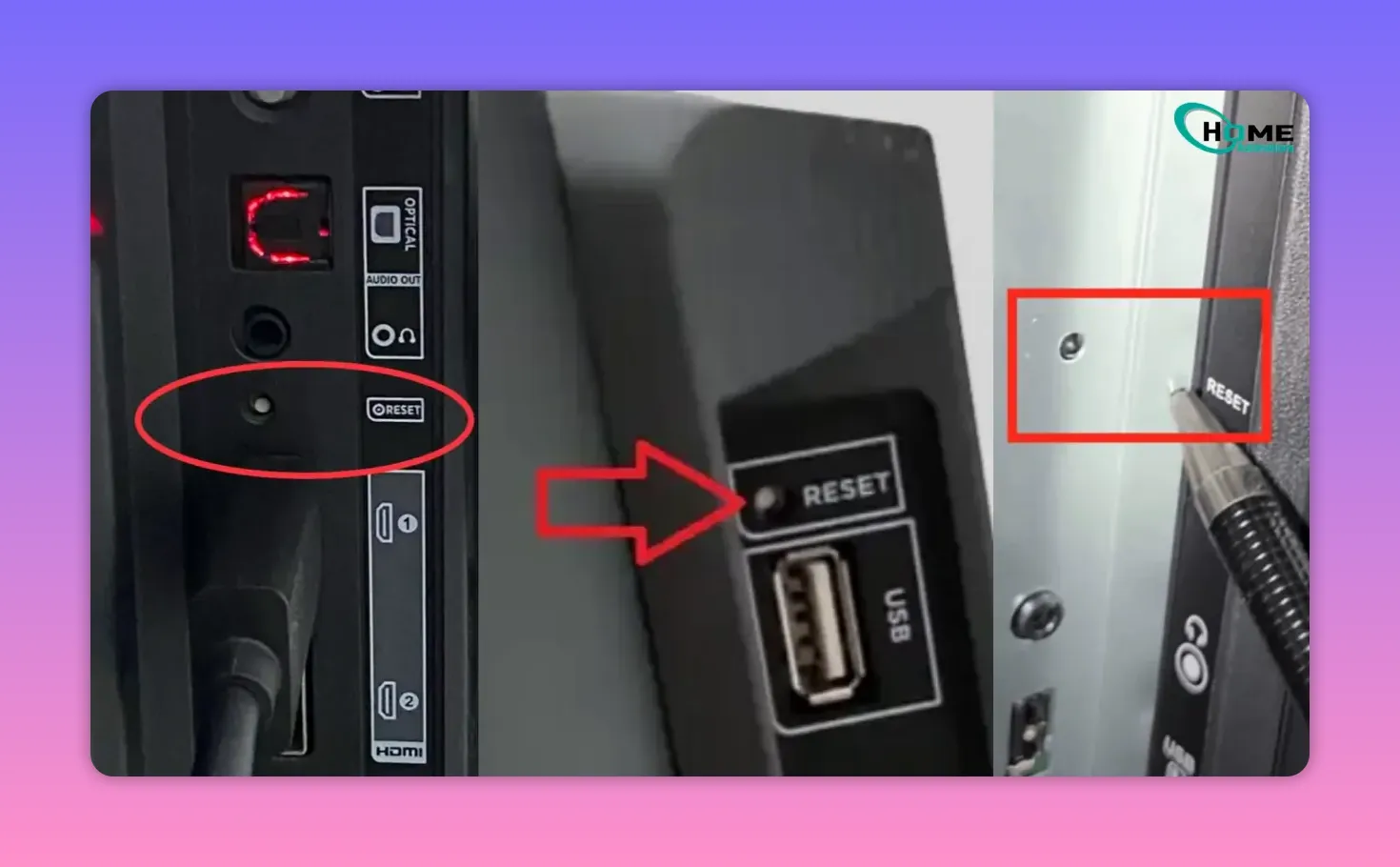
What I use: a toothpick, a paper clip, or the tip of a pen.
- Keep the TV plugged in.
- Locate the pinhole labeled reset (it might be near the HDMI area).
- Press and hold the reset pinhole.
- Hold it even if the screen goes black briefly. That is normal.
- After a few more seconds, the TV turns back on and shows the TCL Roku logo.
- Once you see the logo, you can release the pinhole.
- The TV may reboot twice. That is expected. Wait about 30 seconds until you see the setup screen.
When you reach the setup screen, the TV is now a factory reset.
📌 If You Do Not See a Pinhole: Move to the Button Combo
If there is no reset pinhole on your model, that is okay. The next option is common on newer TCL Roku TVs that do not offer the pinhole reset.
⚡ Method 2: Power + Volume Button Combo (Hard Reset on Many Models)
On many newer TCL Roku TVs, instead of a physical reset pinhole, you perform a button combination on the TV itself.
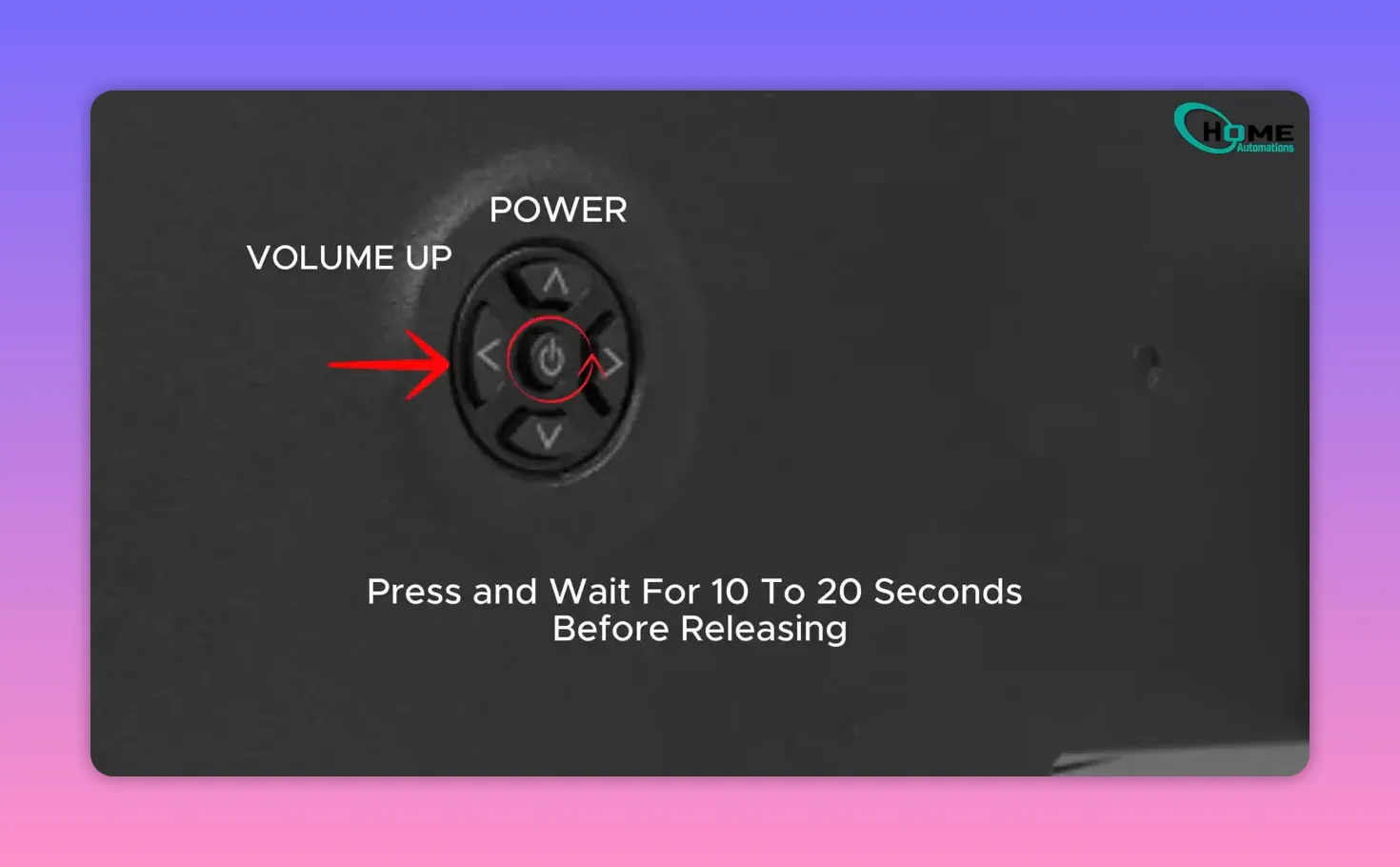
Where to look: for the power button and volume buttons on the TV panel. Usually they are on the bottom edge or the side.
- Press and hold power and volume up together.
- Hold them for about 7 to 20 seconds.
- If nothing happens, try power + volume down instead.
- If this method is supported, I expect a hard reset or a recovery-style reboot.
- If the screen stays black or the logo appears, just wait. Let the TV finish.
- If nothing changes, keep going to the next method.
🧩 Method 3: Hold Power While Unplugging (Works When Other Methods Fail)
This one is a little different, but it can be a lifesaver when a model does not respond to button combos. I call it the “hold power and power-cycle” trick.
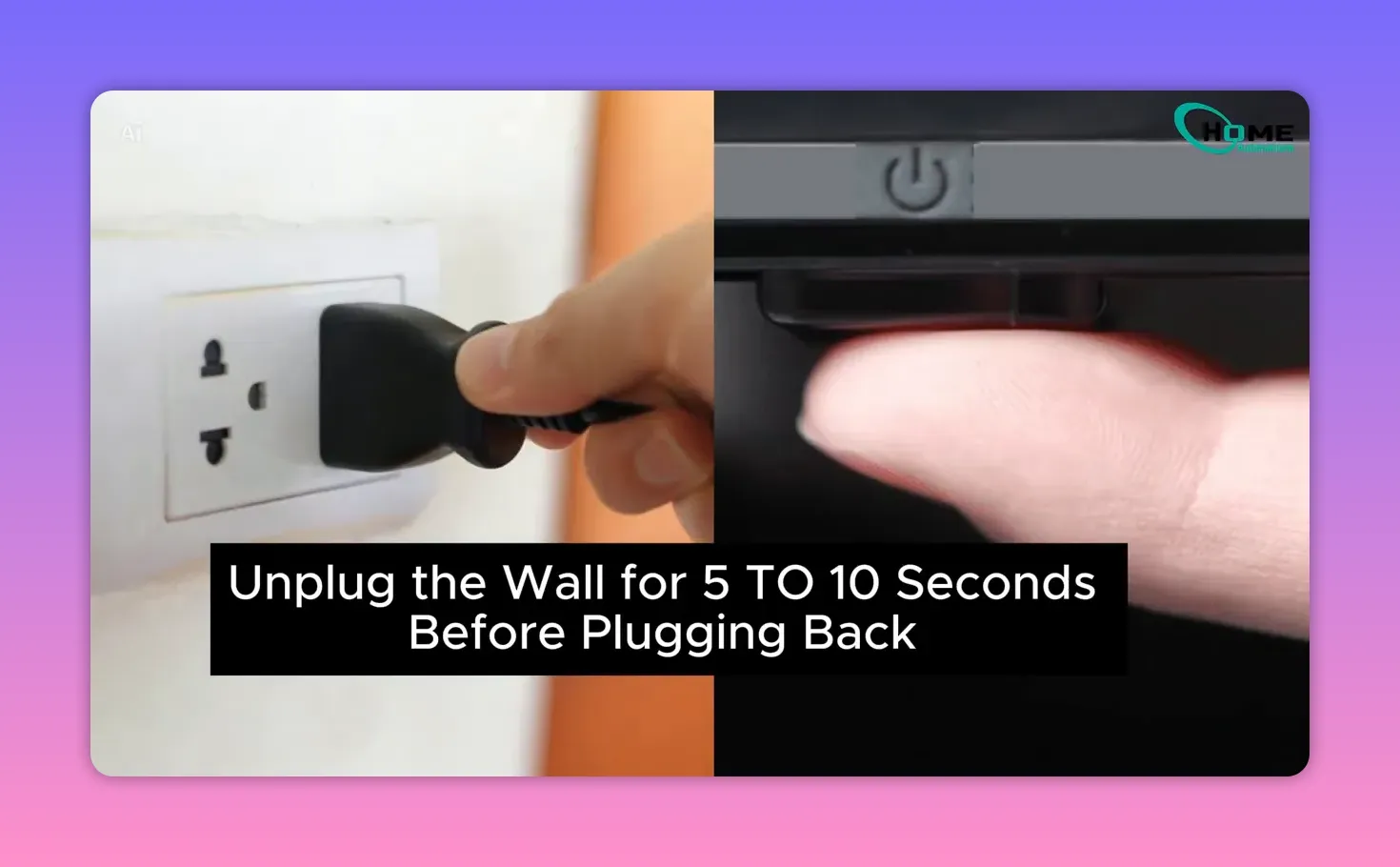
- Press and hold the power button on the TV panel.
- While holding the power button, unplug the TV from the wall.
- Keep holding the power button.
- Plug the TV back in.
- When the TCL Roku logo appears, release the power button.
- On certain models, this forces a factory reset even if other resets did not.
🕹️ Method 4: Soft Reset Using the Roku Remote (No Factory Wipe)
Not everything needs a factory reset. If your goal is simply to get the TV unstuck without deleting your stuff, this is the method I reach for.
This is a soft reset, and it does not erase your stuff.
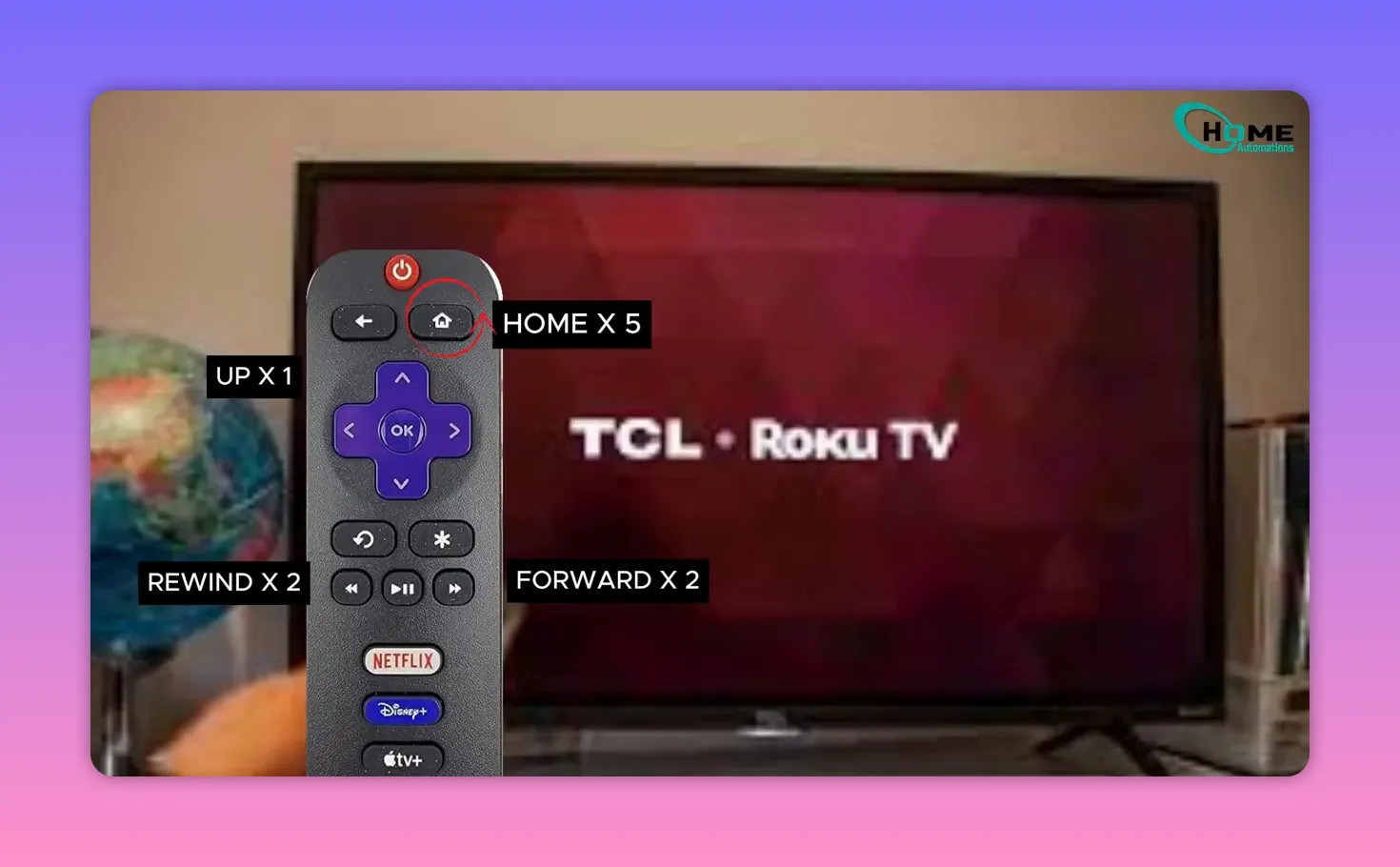
- On your Roku remote, press Home five times.
- Press Up once.
- Press Rewind two times.
- Press Fast Forward two times.
- The TV should reboot automatically.
⏳ How Long to Wait Between Methods (So You Do Not Interrupt the Reset)
With any of these options, the timing matters. My rule is simple: give the TV about a minute to respond.
As soon as you see the reset process starting, you are good to keep waiting. The goal is to let the TV complete the reboot and get to either the logo and recovery state (for hard resets) or the setup screen (for factory resets).
✅ Quick Checklist: Which Reset Should I Use?
- Factory reset needed (frozen or stuck and nothing else helps):
- Try the reset pinhole (Method 1).
- If no pinhole exists, try the power + volume combo (Method 2).
- If still not working, use the hold power + unplug trick (Method 3).
- Just want it to unfreeze without wiping:
- Use the remote soft reset sequence (Method 4).
If you are trying to reset tcl roku tv with and without remote, the best approach is to start with the most direct option your model supports. Once you see the TCL Roku logo, stay patient. Those few extra seconds often make the difference between “nothing happened” and a fully successful reset.
About The Author

Hassan Zaka
I am an expert in accounting and possess diverse experience in technical writing. I have written for various industries on topics such as finance, business, and technology. My writing style is clear and simple, and I utilize infographics and diagrams to make my writing more engaging. I can be a valuable asset to any organization in need of technical writing services.
Follow Us:LinkedinTwitter