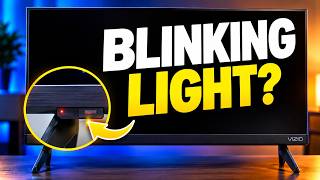
Overview of How To Reprogram Roku Remote – Reprogram within a Few minutes
Many Roku remote reprogramming steps are simple: ensure fresh batteries, press and hold the pairing button for about five seconds until the light blinks, and complete on-screen pairing. Set display type, connect the Roku device to Wi-Fi, and configure TV control (including surround sound) via settings or by pointing the voice remote at the TV. If the remote lacks a pairing button, use an IR remote pointed at the Roku. Rechargeable remotes follow the same pairing timing with visible LED flashes; pairing prompts appear on the TV after selection of language.
-
How do I start reprogramming my Roku remote?
Ensure the batteries are fresh, then press and hold the remote pairing button for at least five seconds until the green light blinks. -
What if the remote does not connect right away?
Press the pairing button once more and ensure the Roku device is connected to the same Wi-Fi network as the remote. -
Can I reprogram a rechargeable Roku remote the same way?
Yes; press and hold the pairing button for about five seconds, watch for slow then fast LED flashes, then release and follow on-screen pairing prompts. -
How do I set my Roku remote to control my TV?
Set the display type and TV control in Roku settings or point the voice remote at the TV during setup; connect surround sound to the TV if applicable. -
What can I do if my remote has no pairing button?
Use a standard IR remote by pointing it at the Roku device to connect, or use the remote that came with your Roku device.
Many users are confused about how to reprogram a Roku remote, but in reality, the procedure is very easy and straightforward, just like when you program your Roku remote for the first time, as you can see in our other detailed topic. Reprogramming the remote only requires a small change, which you can see in this process.
Let’s Get Into How To Reprogram Roku Remote:
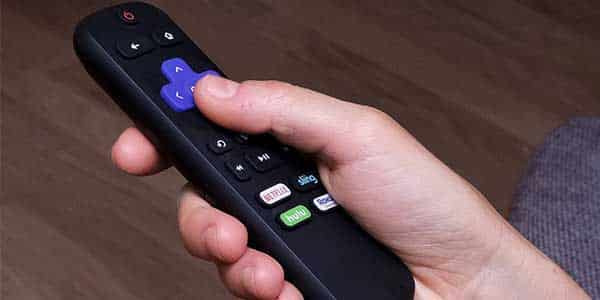
To start:
- Ensure the batteries in your Roku remote are fresh and charged.
- Press and hold the remote’s pairing button for at least five seconds.
- The remote will automatically try to connect to your Roku device and the green light should blink. It might not, however, connect right away. You might have to press the pairing button once more if that occurs.
- Additionally, you must set the display type and connect your Roku device to the Internet.
- After completing this, you should set the Roku remote to operate your TV.
- By looking at the settings menu or aiming your voice remote towards the TV, you can do this.
- Make sure to connect the surround sound to the TV during setup if the TV has it.
- Next, the Roku device needs to be connected to the Wi-Fi network.
- Ensure that the Roku device and the Roku remote are both connected to the same network. To connect to your Roku device, you can also use your standard IR remote. If the Roku remote doesn’t have a pairing button, you can still use the IR signal by just pointing it at the Roku device.
Use the remote that came with your Roku device if you’ve already bought a new one. After then, the app will function exactly like a TV remote!
How Can I Program My Roku Remote Manually?
To do this:
- First, open the battery compartment and make sure that the remote is in pairing mode.
- Next, hold down the remote’s pairing button for five seconds. Your new remote should now be recognized by your Roku device and paired with it. Both the remote’s tabletop and handheld versions function using this process.
- It is required to press and hold the pairing button for approximately 5 seconds when using a rechargeable remote.
- The status light on the remote will then start to continuously flash slowly and quickly. You can remove the pairing button once the flashes get faster.
- A pairing notification will be shown on the TV and your remote will attempt to pair with the Roku device.
The Roku needs to be connected to Wi-Fi next.
- This step will be bypassed if you have a Roku Express 4K+ or Ultra box. The Roku logo and language option menus should appear when you connect.
- Pair your remote with the Roku after choosing your preferred language to use.
You Might Want to see this:
- How to Sync a New Roku Remote without Pairing Button
- How To Reset A Roku Remote
- How to Connect Phone to Roku TV Without Wi-Fi or Remote
- Roku Internet Connection Problems
About The Author

Hassan Zaka
I am an expert in accounting and possess diverse experience in technical writing. I have written for various industries on topics such as finance, business, and technology. My writing style is clear and simple, and I utilize infographics and diagrams to make my writing more engaging. I can be a valuable asset to any organization in need of technical writing services.
Follow Us:LinkedinTwitter