Overview of You Can Turn Google Home Free AS A TV Speaker
Google Home speakers can replace a TV’s weak built-in audio by connecting wirelessly via Bluetooth. This lets you place speakers flexibly around the room or in other rooms. You can pair two Google Home devices as a stereo pair in the Google Home app, assigning left and right channels, naming the pair, and assigning its home and room. To connect, enable Bluetooth on your TV, put the Google Home into pairing mode with Hey Google, pair Bluetooth, and select the device on your TV.
Quick Solutions to Questions related to Google Home TV Speaker Setup:
-
How can I use Google Home as my TV speaker?
Enable Bluetooth on your TV, say Hey Google, pair Bluetooth to put the speaker into pairing mode, then select the Google Home device from the TV Bluetooth settings. -
Can I place Google Home speakers anywhere when connected to my TV?
Yes, because the connection is wireless you can place the speakers anywhere in the room or in another room. -
How do I add two Google Home speakers for stereo TV sound?
Create a stereo pair in the Google Home app by selecting one speaker, tapping settings, choosing Speaker pair, selecting the second device, assigning left and right channels, naming the pair, and selecting home and room. -
Does my TV need Bluetooth to connect to Google Home?
Your TV should have Bluetooth to connect directly; most smart TVs these days include Bluetooth. -
What steps put a Google Home into pairing mode?
Tell your Google Home Hey Google, pair Bluetooth to put the speaker into pairing mode before selecting it on the TV.
One of the key selling points on the Google Home line of smart speakers is that they just sound so good. Even the Diminutive Nest Mini has a distinct bass-range thump that brings out the funk in your favorite songs. But then there is a gadget that’s infamous for having second-rate speakers in your home — your TV. Luckily, your Google Home ($130) speakers are probably compatible with your smart TV, with simple setup process you can turn google home free as a TV speaker and enjoy the much better audio as compare to TV speakers.
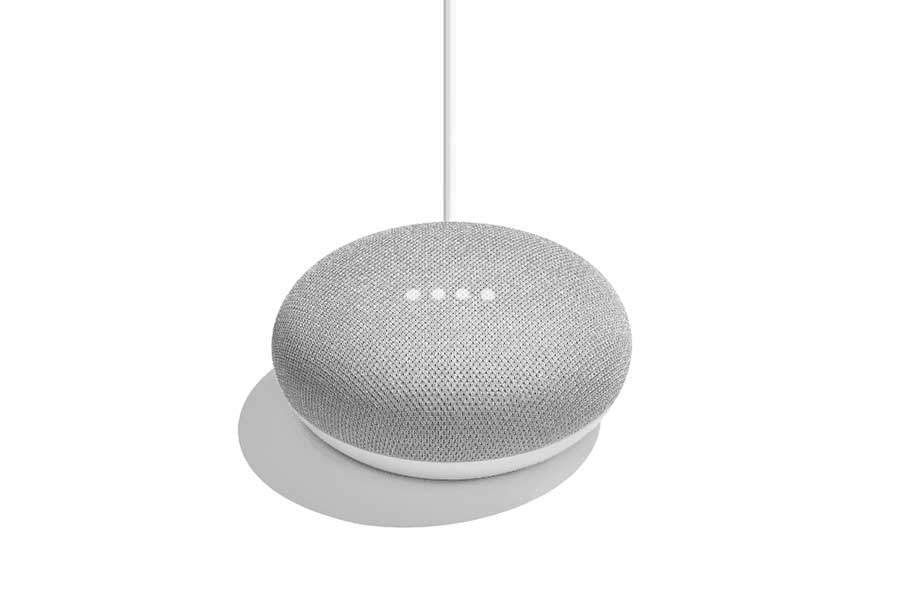
Since you’ll Be Connecting Your TV To Google Home Wirelessly
- You can put them in the room anywhere you want, instead of next to a TV.
- You can place a speaker near the couch at the end table, where you normally watch TV.
- You might also pipe your TV audio to a speaker in another room, like a kitchen or a toilet, so you don’t lose something when you have to get up.
Smart Home: Home Smart Devices That Are Worth Your Money
How To Add Two Or More Speakers With The TV
To add two or more speaker with TV bring the ultimate stereo sound, In fact you can place them to your whole house to turn them into full home audio system.
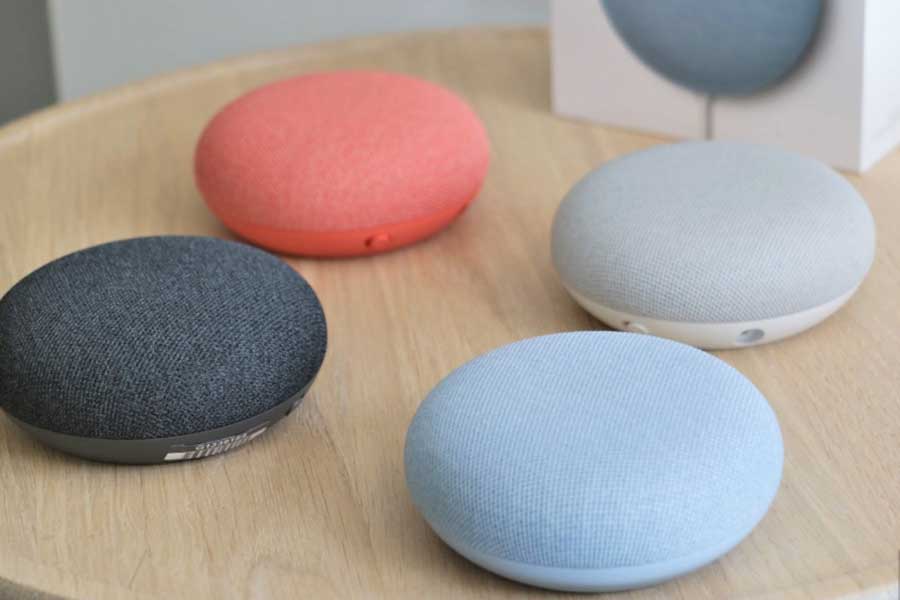
Connect Your TV From Bluetooth
If your TV has Bluetooth (and most smart TVs these days do), you should have no problem connecting it to a Google Home speaker.
- Navigate to the Bluetooth settings in the Settings menu on your TV
- Tell your Google Home, “Hey, Google, pair Bluetooth” to put your speaker into pairing mode and select the Google Home device you want to connect to.
Add Two Or More By Pairing Up Speakers
To do that, first you have to create a stereo pair in the Google Home app by assigning one speaker to the left audio channel and a separate speaker to the right.
- Open the Google Home app on your phone or tablet and tap on one of the two speaker icons you want to pair.
- Tap the settings icon
- Scroll down to Device settings and tap Speaker pair.
- Choose the second device icon for your speaker pair and tap Next.
- The first device you selected will start blinking — in the app, select whether the blinking device should be used as the right or left channel (it doesn’t matter which) and tap Next. The other speaker will automatically become the opposite channel you choose.
- Name a new pair something (like “Google Home Speaker Pair“) and tap Next.
- Choose which home and room the speakers belong in, for example “Home” might be the name of your home and “Living room” may be the room where you’re putting the speakers.
About The Author

Hassan Zaka
I am an expert in accounting and possess diverse experience in technical writing. I have written for various industries on topics such as finance, business, and technology. My writing style is clear and simple, and I utilize infographics and diagrams to make my writing more engaging. I can be a valuable asset to any organization in need of technical writing services.
Follow Us:LinkedinTwitter