Overview of How to Do a Factory Reset on Oculus Quest 2
This article explains how to factory reset a Meta (Oculus) Quest or Quest 2 using either the Meta Quest phone app or the headset buttons. It details app navigation steps, the headset button sequence for recovery mode, and warns that a factory reset deletes games, data, and firmware changes. Reasons to reset include preparing the headset for sale or fixing persistent issues, and users should back up data to the cloud first.
Quick Solutions to Questions related to Oculus Quest 2:
-
How can I factory reset my Quest 2 using the phone app?
Open the Meta Quest app, tap Devices, select your Quest, go to Advanced Settings, tap Factory Reset, then tap RESET. -
Can I factory reset my Quest 2 without the phone app?
Yes. Press and hold the power and volume down buttons until it turns on, highlight Factory reset with the volume buttons, and press power to select and confirm Yes, erase and factory reset. -
Do I lose my games and saved data when I factory reset?
Yes. A factory reset deletes all downloaded games, saved game data, and customized settings. -
Why should I perform a factory reset on my Oculus Quest or Quest 2?
To restore factory settings before selling or giving away the headset, or to fix persistent issues when other options have failed. -
Should I back up data before performing a factory reset?
Yes. You must back up your data to the cloud before resetting to prevent data loss.
How to Factory Reset a Meta (Oculus) Quest or Quest 2 Using the Phone App
If your Quest is paired to the Oculus phone app, you can use it to initiate a factory reset.
1. Open the Meta Quest app on your phone.
2. Tap Devices.
3. Tap your Quest
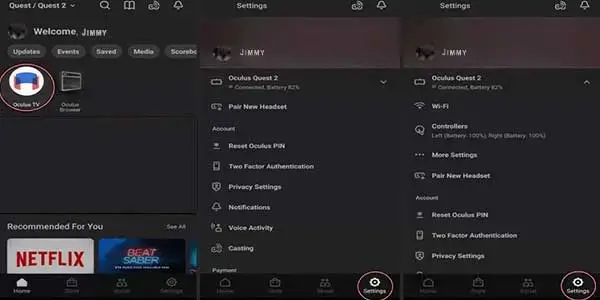
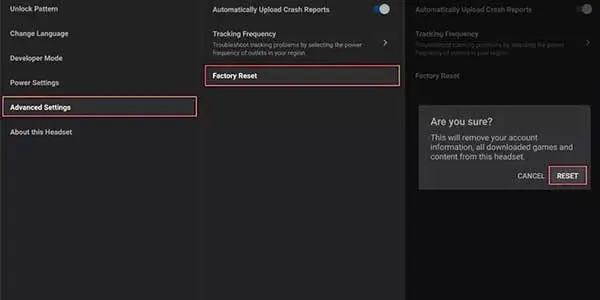
4. Tap Advanced Settings.
5. Tap Factory Reset.
6. Tap RESET.
Note: You can factory reset oculus quest 2 without using your phone.. Find it how.
How to Do a Factory Reset on Oculus Quest 2 Using Headset
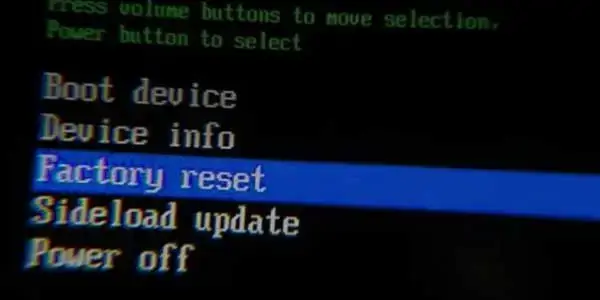
- Press and hold the power and volume down buttons on your Quest or Quest 2 until it turns on.
- Use the volume button to highlight Factory reset, then press the power button to select it.
- Use the volume button to highlight Yes, erase and factory reset, then press the power button to initiate the reset.
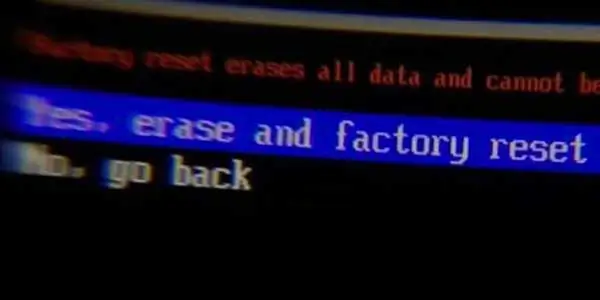
Your Quest will perform a factory reset, so you will have to perform the initial setup and download all of your games again the next time you turn it on.
Note: You must backup your data on the cloud before doing a factory reset in order to prevent data loss.. Follow these steps.
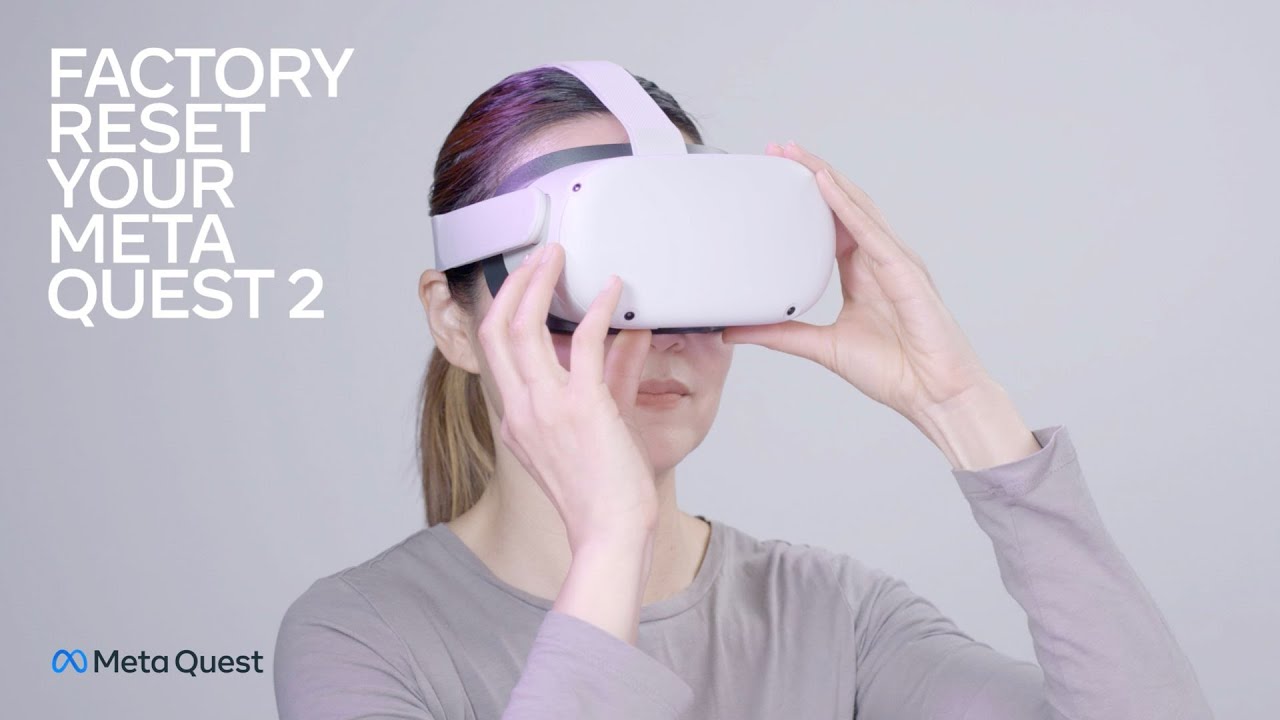
Why you need to do a factory reset on Oculus Quest 2?
The Oculus Quest or Oculus Quest 2 headset’s factory settings are restored when you do a factory reset. By using this method, firmware upgrades are removed and the original firmware is restored. All downloaded games and saved game data are likewise deleted, and all customized settings are reset to their default values.
An Oculus Quest or Quest 2 should be factory reset for the following two reasons:
You’re getting rid of the headset: It’s a good idea to conduct a factory reset on your Oculus Quest before selling or giving it away. The receiver of the headset can then make a clean start.
The headset isn’t working properly: A factory reset of your Quest headset will frequently solve any issues you’re having with it. But, since this process cannot be stopped, you should only use it as a last resort. You can execute a factory reset if you’ve exhausted all other options or if you don’t want to lose any saved data.
If not, starting over is a preferable option.
In case you failed to perform factory reset your oculus quest due to these reasons (unable to perform factory reset) then you don’t have to go anywhere.. just find this topic it will fix this issue and you can again perform factory reset with ease.
You might want to see this:
Best headphones for Oculus Quest 2
About The Author

Hassan Zaka
I am an expert in accounting and possess diverse experience in technical writing. I have written for various industries on topics such as finance, business, and technology. My writing style is clear and simple, and I utilize infographics and diagrams to make my writing more engaging. I can be a valuable asset to any organization in need of technical writing services.
Follow Us:LinkedinTwitter