Overview of How To Set Up Flic 2 With Apple Homekit
This article explains pairing Flic 2 buttons with Apple HomeKit using the Flic app and an active internet connection. After connecting the Flic Hub in the Flic app, enable Add to Homekit for a chosen button, allow Home data access, assign a room and name, and finish setup. Additional Flic buttons can be added without repeating hub setup, and you can configure single, double, and long-press actions or trigger HomeKit Scenes. It also notes ensuring internet connectivity and mentions setting up Apple TV as a Home Hub.
Quick Solutions to Questions related to Flic 2 With Apple Homekit:
-
How do I start pairing Flic 2 with HomeKit?
First connect your Hub in the Flic app and ensure the hub is set up. -
Do I need internet to pair Flic 2 with HomeKit?
Yes, you must have an active internet connection and verify it in the Flic app settings before pairing. -
How do I add a Flic button to HomeKit?
In the Flic app select the button, enable Add to Homekit, press Proceed, allow HomeKit access, choose a room and name, then press Done. -
Can I add multiple Flic buttons to HomeKit without repeating setup?
Yes, after the hub is set up you can add additional buttons and they will appear in the Home app without repeating hub setup. -
How do I configure actions for Flic buttons in HomeKit?
Use the Home app to set actions for single, double, and long presses or trigger HomeKit Scenes for multiple devices.
Here the Steps of How To Set Up Flic 2 With Apple Homekit
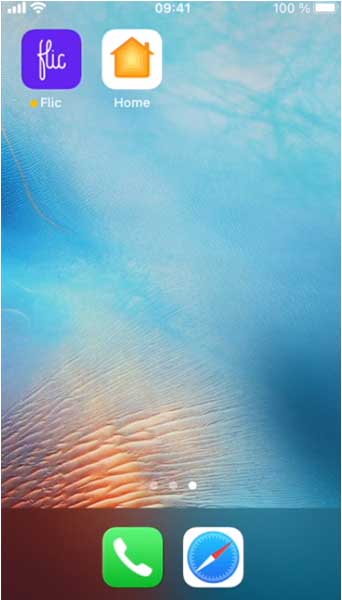
Most Homekit accessories are paired directly from home app
But in the case of Flic you have to pair via flic app
- Connect your Hub with flic app
- If you are not set up your hub already then do so first
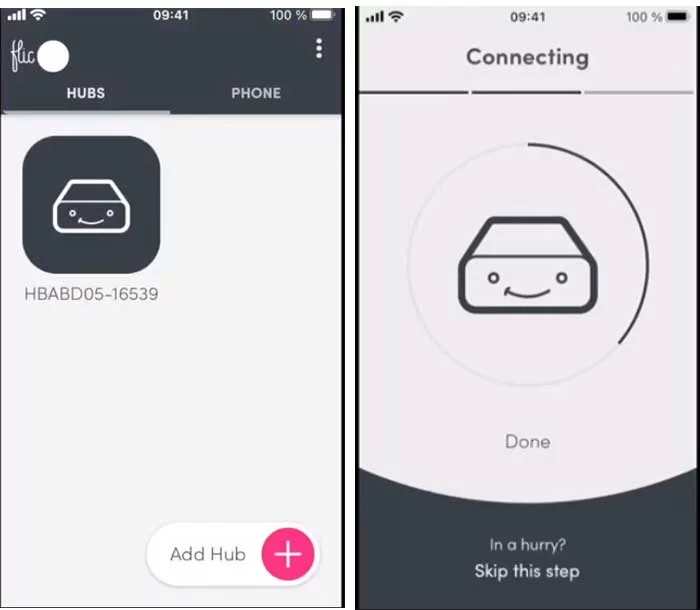
After setting up hub
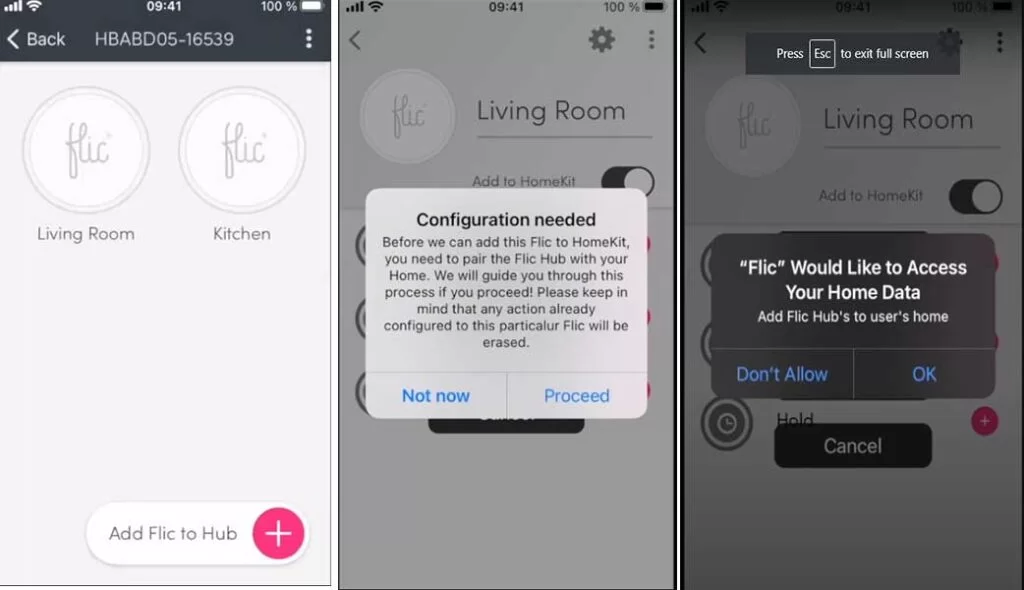
- You can see already have two flic buttons paired with Flic App.
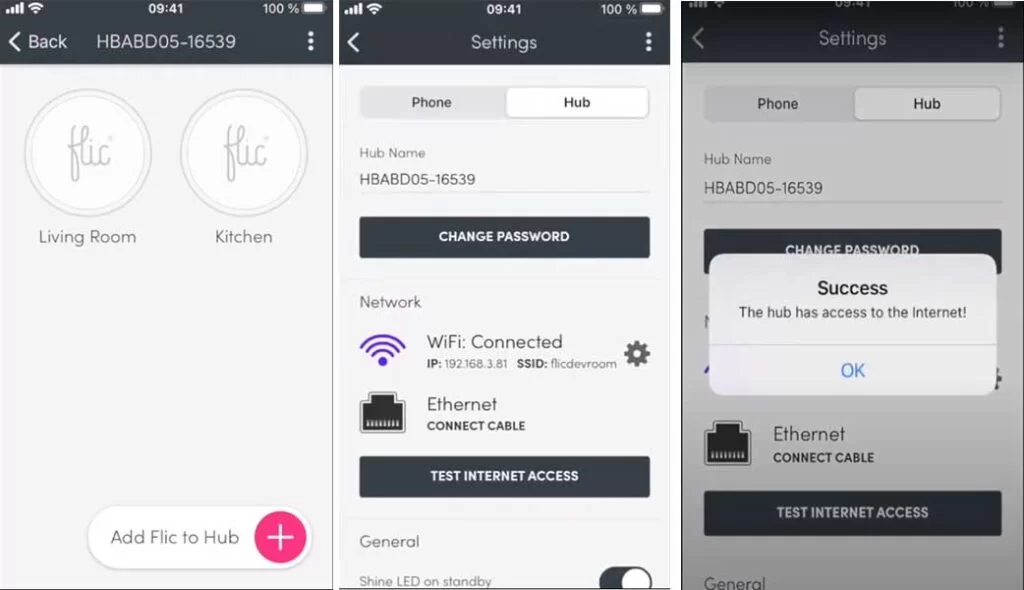
- Before pairing with Homekit first need to make sure that you have active internet connection, this will required during Homekit pairing process, so to test good internet connection.
- Go to setting press internet access button to make sure you are online.
Pairing Flic 2 With Homekit App
Choose the button you want to share with Homekit
- You will see a slider called Add to Homekit, activate it and then press Proceed
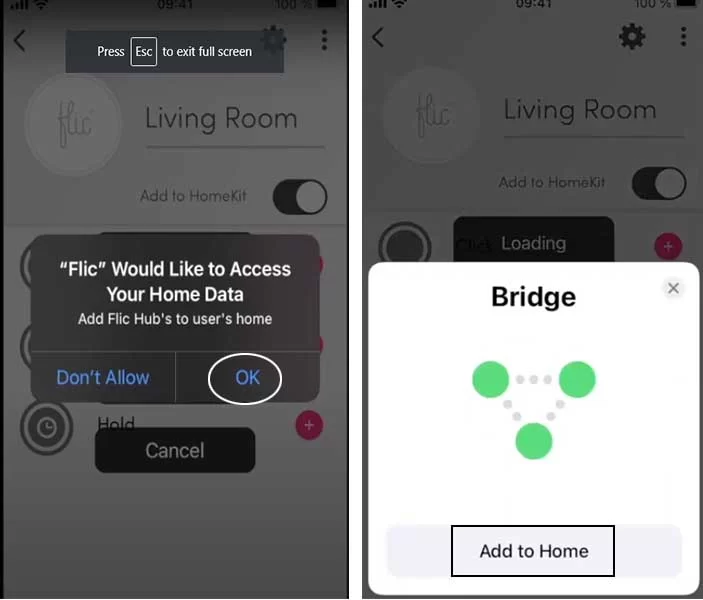
- IOS ask you to allow the flic app to access your Homekit and home data
Press Ok to allow and then add to home
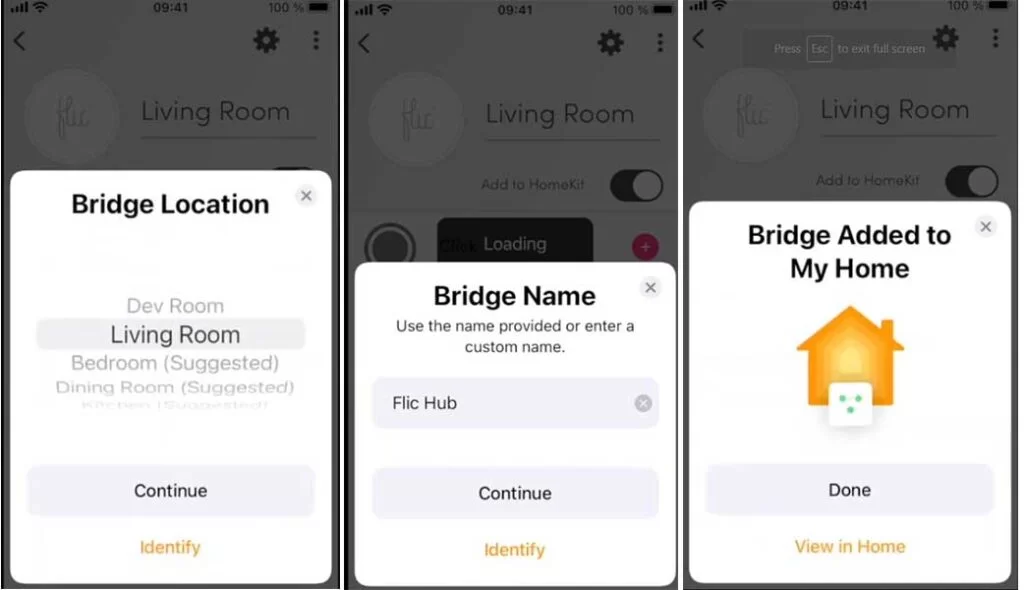
- Select the Room you want to assign the hub or create new one
- You can select the name of the hub, by default the name will be shown in the home app as you can see.
- Press done to complete the setup process
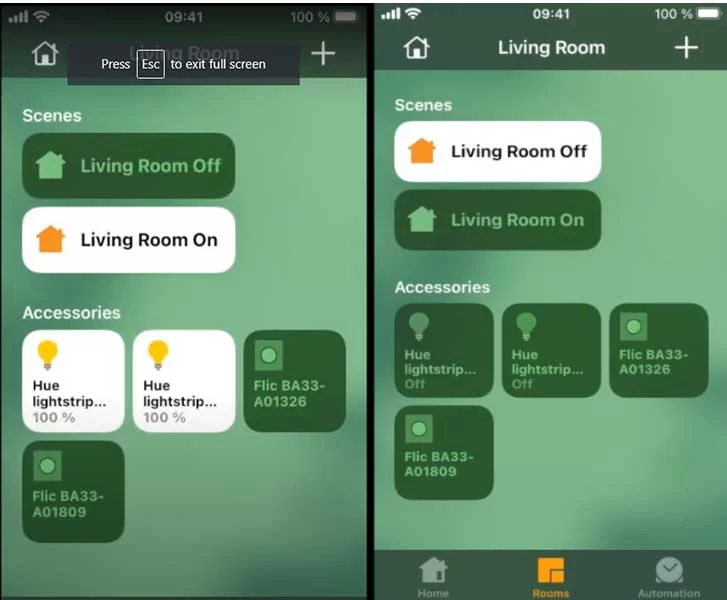
After completion make sure that you can see Homekit actions added to each trigger

Smart Home: Set Up Apple TV As Home Hub
Smart Home: Apple Homekit Light Switches
In case of more than one flics
If you have more flic to add to Homekit then do so now
- Add another button
- Note: To add the second flic you don’t have to go through setup again
- Leave the flick app and continue the home app and you can see the buttons visible in the home app
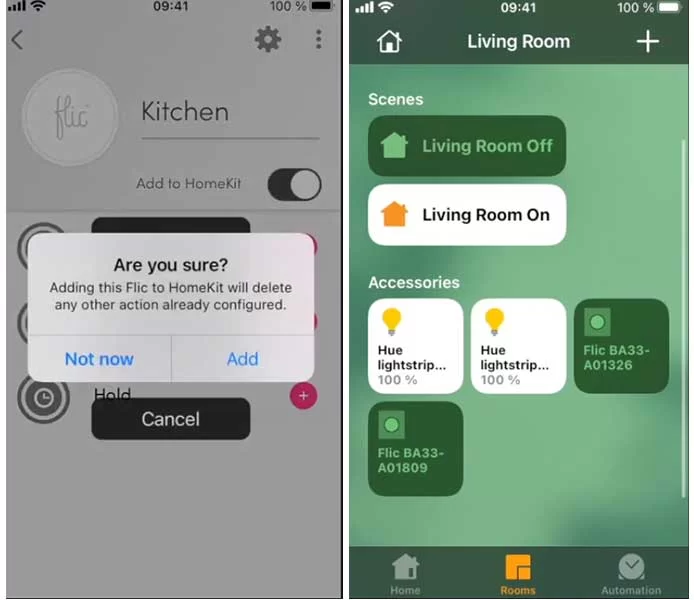
Select the one to setup the actions
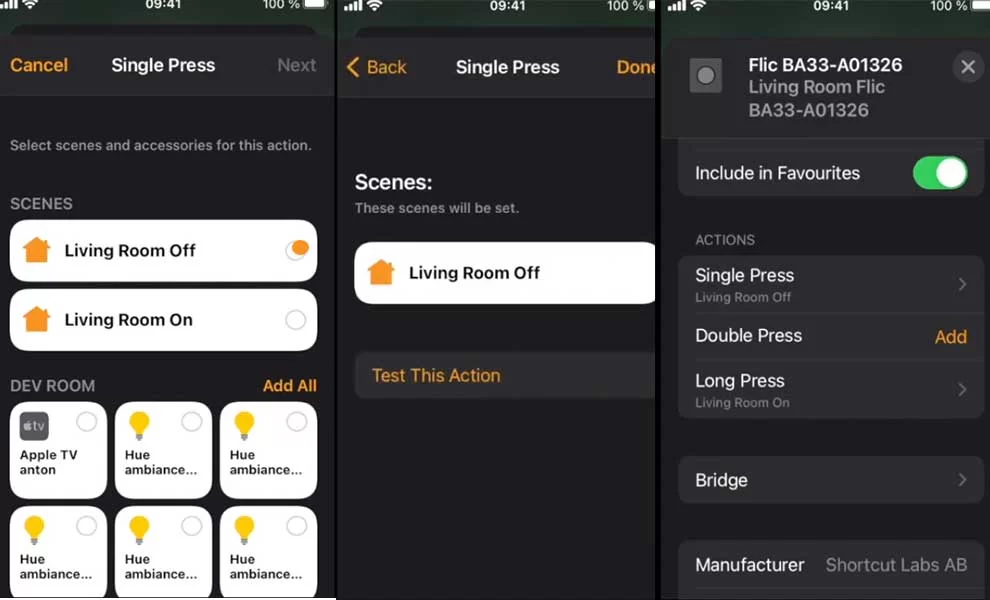
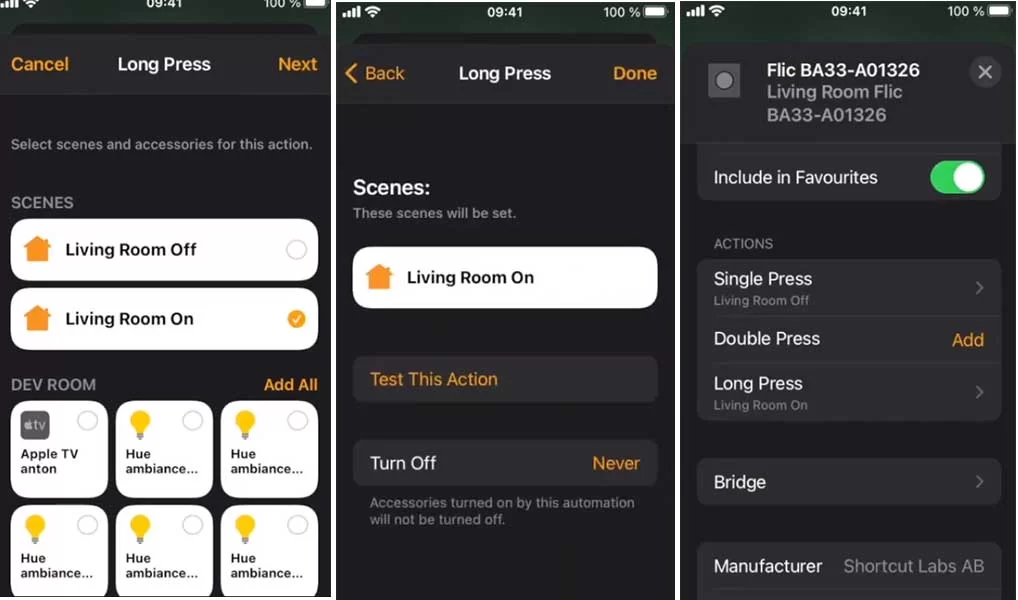
You can setup the actions for single, double press and Long press just like you used to do in Flic App
The Easiest way to controlling multiple devices is to trigger a Homekit Scene
Let’s Setup for Single Press
Let’s setup for Long press
Done
About The Author

Hassan Zaka
I am an expert in accounting and possess diverse experience in technical writing. I have written for various industries on topics such as finance, business, and technology. My writing style is clear and simple, and I utilize infographics and diagrams to make my writing more engaging. I can be a valuable asset to any organization in need of technical writing services.
Follow Us:LinkedinTwitter